标签 帐号 下的文章

说明:ss-panel-v3使用的SMTP发邮件,之前阿里云国际版用465端口正常,迁移到DigitalOcean不能使用25和465给客服发ticket,得到的回复如下:

[scode type="share"]Thank you for reaching out to us. We're very sorry that you are facing issues with SMTP.

Stopping spam is a constant fight and due to this, your account has restrictions specifically on ports 25 and 465. However, you are be able to send out mail using port 587. You will need to open the port in your firewall.

We realize this is inconvenient, but many customers in your position move their mailing activities to a third party service such as SendGrid or similar which processes such mail separately from their droplet. I'm sorry for the frustration but we're not able to lift these port restrictions at this time.

In terms of a workaround, here are a few alternatives:

  1. Utilize port 587 for SMTP relay via another mail provider, for example G Suite/Gmail, Mailgun, etc. We have a guide on doing so using Postfix here:

https://www.digitalocean.com/community/tutorials/how-to-set-up-a-mail-relay-with-postfix-and-mailgun-on-ubuntu-16-04

  1. Configure your app or service to send mail directly using either a SMTP client connection (typically using port 587), or API call via another mail provider such as Sendgrid, Mailgun, Mandrill, etc.

Please note that with this restriction in place on port 25, mail servers hosted here will be unable to directly relay email to other mail servers, as communication between mail servers typically takes place on port 25.

We think the API is the best solution, as it is honestly more scalable and what we would use if we wanted to "future proof" the project.

Please feel free to reach out to us via this ticket if you have further queries or concerns, we will be around to help you out!

Regards,

Saurabh
Developer Support Specialist - DigitalOcean

(Check out our fantastic community articles: https://www.digitalocean.com/community)[/scode]
所以决定使用Gmail的587来发送邮件。

开启IMAP

1.在计算机上打开 Gmail。
2.点击右上方的“设置”图标。
3.点击转发和 POP/IMAP 标签。
4.在“IMAP 访问”部分,点击启用 IMAP。
5.点击保存更改。

开启安全性较低的应用的访问权限

直达链接:https://myaccount.google.com/lesssecureapps

SMTP设置

发送邮件 (SMTP) 服务器:smtp.gmail.com
要求 SSL:是
要求 TLS:是(如适用)
使用身份验证:是
TLS/STARTTLS 端口:587
完整名称或显示名称:您的姓名
帐号名、用户名或电子邮件地址:您的完整电子邮件地址
密码:您的 Gmail 密码
前言

以下只涉及ss,没有面板,环境一键包安装。个人理解做站才需要安装lamp或者lnmp环境。

工具

Xshell 5 :链接: https://pan.baidu.com/s/1skJ6fet 密码: t5st

相关链接
win10下Xshell缺少mfc110.dll msvcr110.dll

连接vps

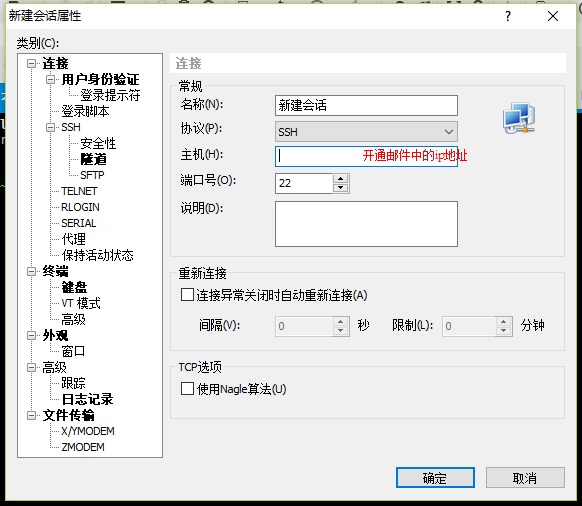
打开商家发来的开通激活邮件,输入ip,帐号,密码连接
连接vps

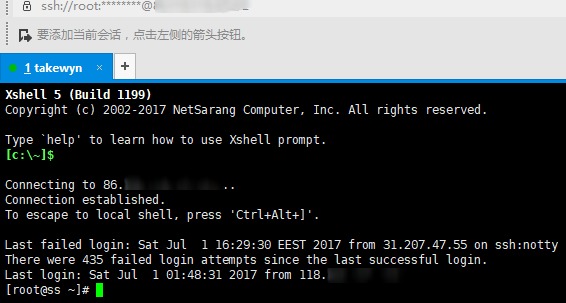
登录成功后的提示信息
登录成功后的提示信息

安装最新内核并开启BBR

参见 一键安装最新内核并开启 BBR 脚本
注意:安装完成后,脚本会提示需要重启 VPS,输入 y 并回车后重启。我在安装的时候这个重启好像出了问题。我是直接在网页管理后台选择的重启。重启之后验证已成功开启bbr

安装shadowsocks

参看 CentOS下shadowsocks-libev一键安装脚本

u2b效果

可能这个便宜主机被玩坏了吧。速度够自己一个人用。
u2b效果

之前介绍了:阿里云虚机ssl通过cdn开启https
阿里云的cdn花33块钱买的100g,今天介绍一下腾讯的cdn。价格说明里面可写着免费呢。

所有CDN用户每月均可享受10GB免费流量包,新开通CDN的用户连续6个月,每月再赠送50GB流量包。

免费10g每月

下面以我自己的域名linhaoyi.com来演示,说明下:linhaoyi.com解析使用dnspod,ssl证书在阿里云,使用的阿里云虚拟主机。

开通腾讯云cdn

腾讯云cdn地址:https://www.qcloud.com/product/cdn
注册并开通cdn服务,可以使用dnspod、QQ帐号直接登录。

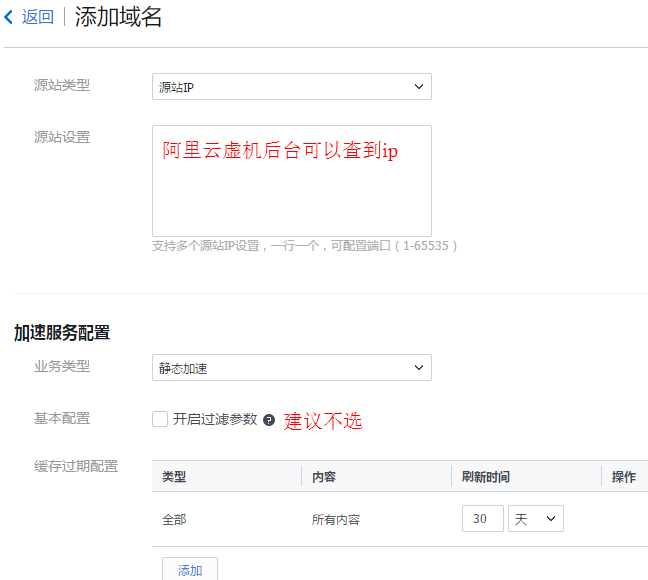
添加域名

必须备案过的域名
添加域名

解析域名

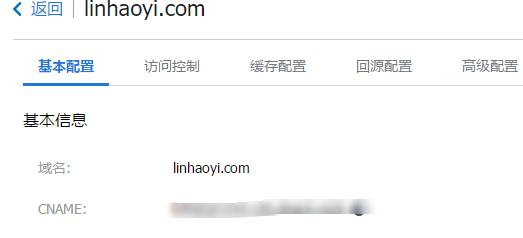
查看CNAME

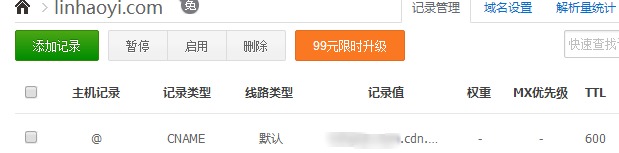
查看到CNAME并在dnspod设置里面添加解析

CNAME在dnspod解析

HTTPS配置

在阿里云的证书服务中把当前域名的ssl证书下载到电脑并解压,下载的时候选择Nginx格式的。
打开高级配置,在https配置选项后点击前往配置。
按照要求填写,证书内容复制.pem文件的内容,有两段;私钥内容复制.key文件的内容。
上传ssl证书

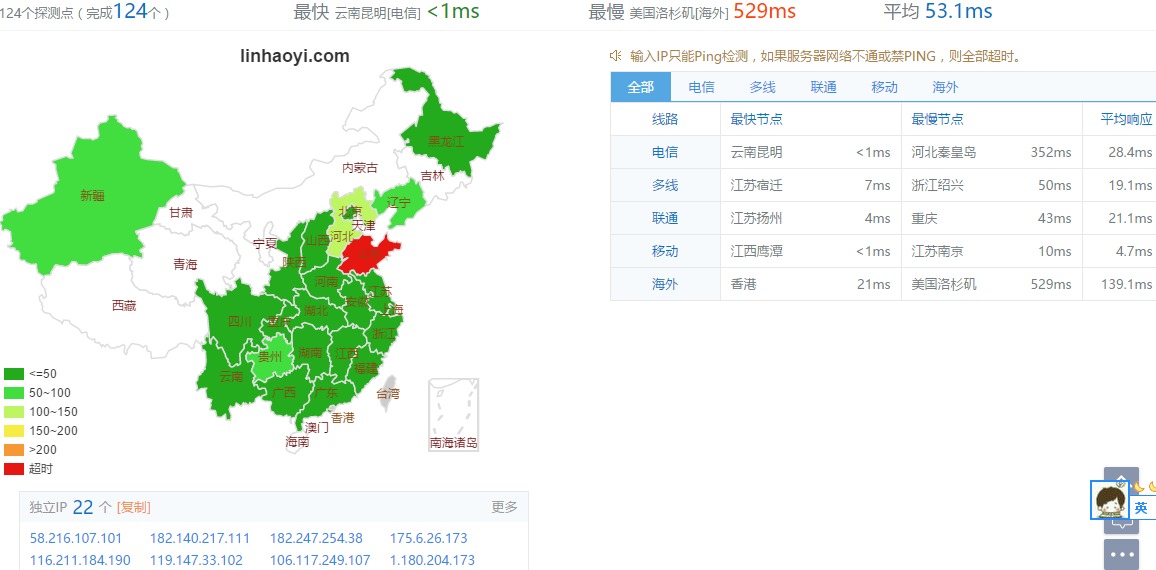
加速效果

腾讯cdn加速效果

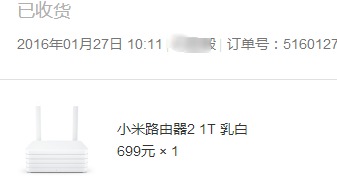
我自用的路由器是小米的r2d,当时699的价格还是心痛的,用了1年多了,没出什么毛病。
16年买的小米路由器2

在tc科学上网是必不可少的,之前用的年付vpn,好像是158/年,green vpn家的。到期了觉得没必要就没续费了,之后发现Shadowsocks兴起了,还出现了很多的免费ss。才发现Shadowsocks是个好东西,到处都在推荐白菜价的vps自己搭,看着评论说效果不好,我迟迟没有下手,用着dalao们分享的ss。

废话说了一大篇了,现在开始入正题,手机和电脑上要科学上网都要开着程序代理,然后就想在路由器端搞定,就不用每个设备再单独开代理了。以下是以我的小米路由器2为例,适用于小米路由器1/2/3

开启路由器的ssh

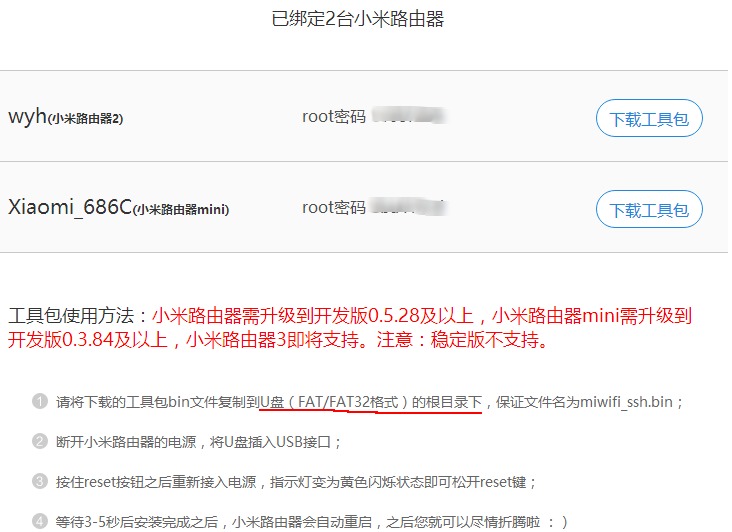
访问http://d.miwifi.com/rom/ssh,登录自己的小米帐号,按照说明步骤获得高级管理权限。
开启路由器的ssh

注意需要开发版rom

安装misstar tools

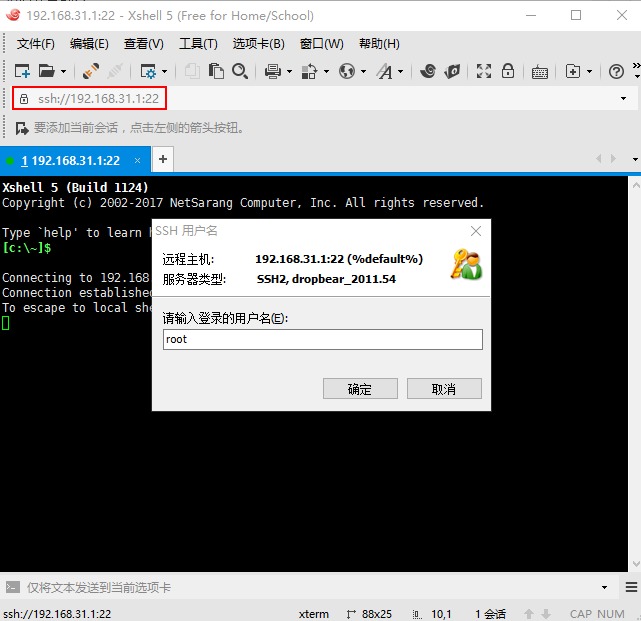
  1. 用 Xshell 5 连接到路由器,默认的地址是192.168.31.1,用户名是root,密码在之前的页面上可以看到。
    ssh连接小米路由器
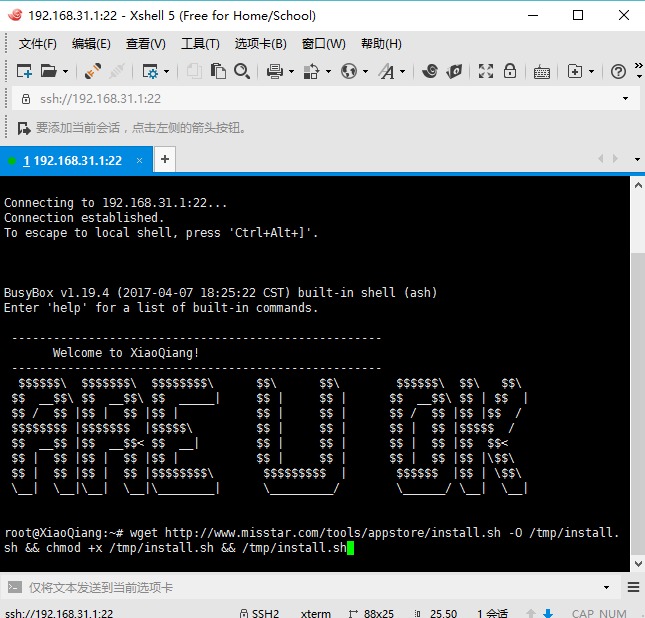
  2. 在对话框粘贴以下代码回车安装misstar tools插件
wget http://www.misstar.com/tools/appstore/install.sh -O /tmp/install.sh && chmod +x /tmp/install.sh && /tmp/install.sh

安装misstar tools

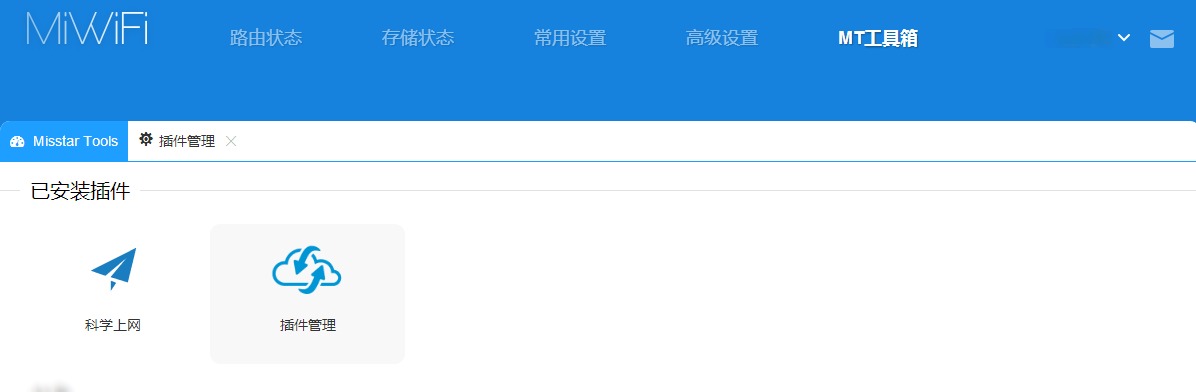
  1. 在路由器后台找到MT工具箱,打开插件管理,添加科学上网,填写好帐号信息就可以正常使用了。
    科学上网

该插件支持导入电脑的ss帐号信息,支持自定义gfwlist,更多的类容自己研究吧。

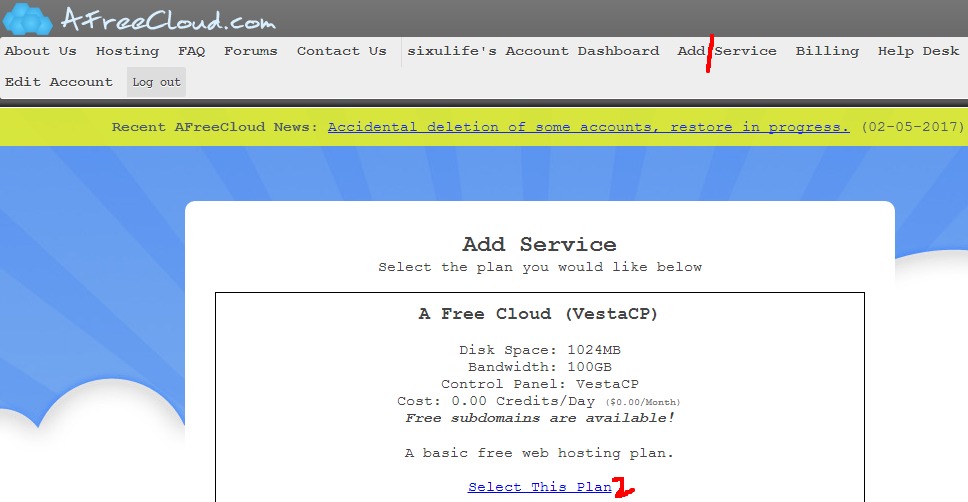
Free Cloud-Based Web Hosting | AFreeCloud.com
*A Free Cloud (VestaCP)
Disk Space: 1024MB
Bandwidth: 100GB
Control Panel: VestaCP
Cost: 0.00 Credits/Day ($0.00/Month)
Free subdomains are available!
A basic free web hosting plan.*
注册地址
https://afreecloud.com/register.php

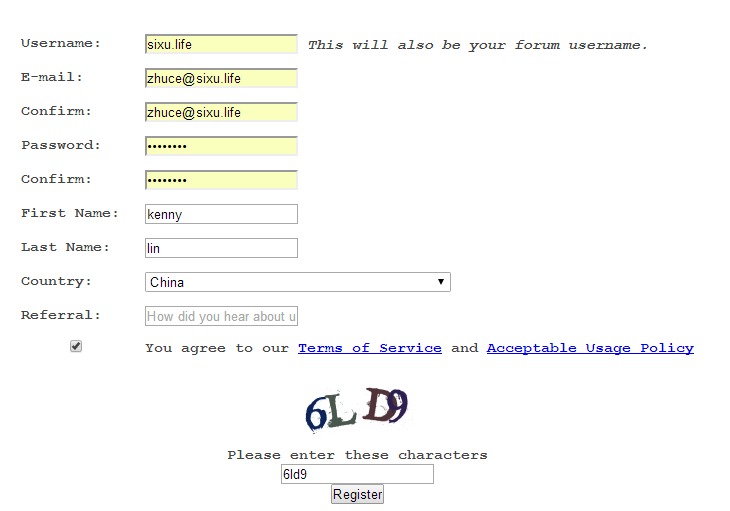
填写注册信息
Free Cloud-Based Web Hosting填写注册信息

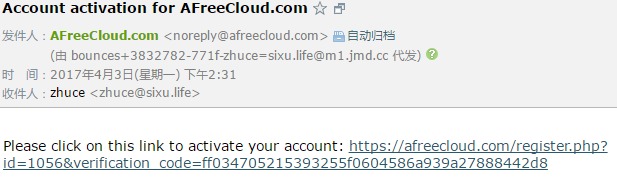
到邮箱中点击激活邮件
click on this link to activate your account

点击了激活链接可以看到激活成功的提示
激活成功

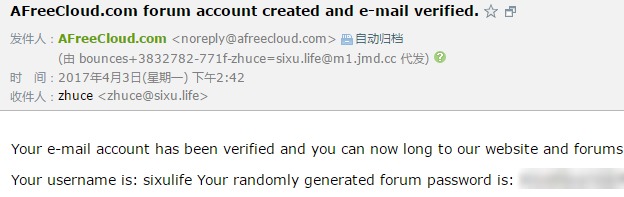
激活成功之后会收到一个论坛的帐号和密码,这个不用管,没用。
论坛的帐号和密码

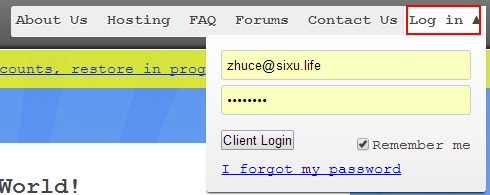
回到主页点击右上角登录
https://afreecloud.com/index.php
登录afreecloud.com

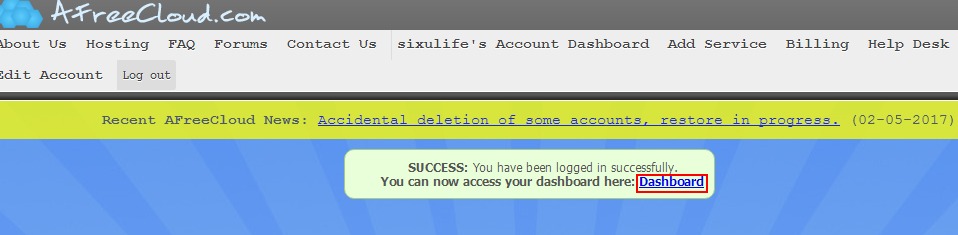
进入控制台
https://afreecloud.com/index.php?p=dash
进入控制台

选择一个免费套餐-Add Service-A Free Cloud (VestaCP)

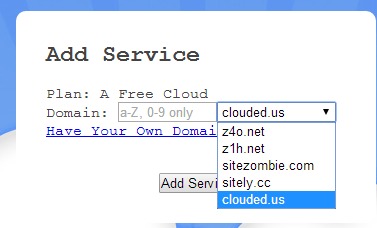
可以使用提供的二级域名或者自己的域名
设置域名

申请成功
申请成功

等待服务生效

Your service has been added and an e-mail will be sent once it is active. All services require manual review before activation so please allow 2-3 business days for somebody to review and activate your new service.

您的服务已添加,并且一旦激活,将发送一封电子邮件。 所有服务需要在启动前进行手动审核,所以请允许有2-3个工作日来查看并激活您的新服务。

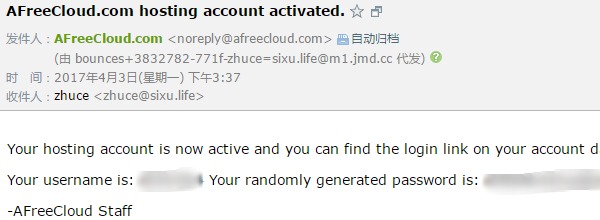
收到邮件,有帐号和密码
account dashboard控制台地址:https://afreecloud.com/index.php?p=dash
收到邮件,有帐号和密码

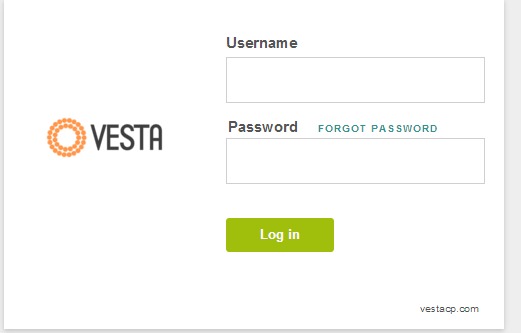
使用邮箱中的帐号密码登录
使用邮箱中的帐号密码登录

添加解析记录
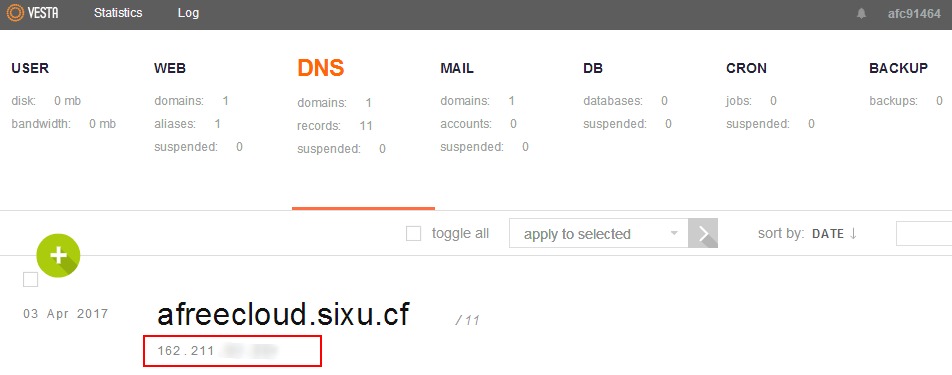
在dns选项下查看ip地址
在dns选项下查看ip地址
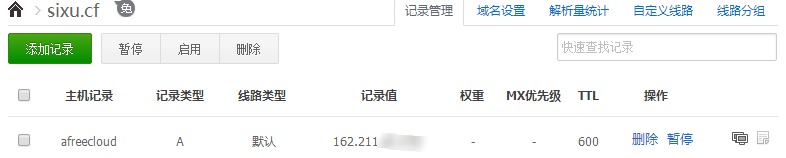
添加解析记录
添加解析记录

至此,已经可以成功访问了。演示地址 http://afreecloud.sixu.cf/