标签 服务器 下的文章

什么是frp

一个内网穿透的工具 没有公网IP又想访问里面服务的时候用得上 工具需要一台有公网IP的设备来中转
有公网IP的设备上安装frp服务端 frps
无公网IP的设备上安装frp客户端 frpc
宝塔是因为设备上已经安装了才说的 宝塔对于frp来说,非必要

安装服务端frps

在有公网IP的设备上安装frp服务端
fprs宝塔插件下载地址:http://pan.sixu.space/tools/btp_frps1.2.1.zip
在宝塔安装第三方工具 导入安装frps可视化面板
首次运行 frps版本在线安装 设置好端口 面板信息 启动

安装客户端frpc

在没有公网IP的设备上下载frp客户端 https://github.com/fatedier/frp/releases 注意下载的版本和frps的版本一致
frpc的配置

[common]
server_addr = 你的公网服务器IP
server_port = 你在服务端配置的端口
token = 你在服务端配置的身份验证码
[代理名称]
type = tcp
local_ip = 内网IP地址,本机填写 127.0.0.1
local_port = 内网端口
remote_port = 公网访问端口

临时跑起来

/bin/bash -c '/root/frp_0.44.0_linux_amd64/frpc -c /root/frp_0.44.0_linux_amd64/frpc.ini'

Supervisor

在宝塔的应用商店里面安装Supervisor 添加一个'frp2'的任务名称 只是举例
命令重启刚添加的任务:/www/server/panel/pyenv/bin/supervisorctl restart frp2:frp2_00

1.查看分割区的编号
parted里面执行print

(parted) print                                                            
Model: QEMU QEMU HARDDISK (scsi)
Disk /dev/sda: 10.7GB
Sector size (logical/physical): 512B/512B
Partition Table: msdos
Disk Flags: 

Number  Start   End     Size    Type      File system     Flags
 1      1049kB  4295MB  4294MB  primary   ext4            boot
 2      4296MB  9999MB  5703MB  extended
 5      4296MB  5368MB  1072MB  logical   linux-swap(v1)

2.删除多余的分割区

(parted) rm 2                                                             
Warning: Partition /dev/sda2 is being used. Are you sure you want to continue?
Yes/No? yes                                                               
Error: Partition(s) 5 on /dev/sda have been written, but we have been unable to inform the kernel of the change, probably because it/they are in use.  As a result,
the old partition(s) will remain in use.  You should reboot now before making further changes.
Ignore/Cancel? Ignore                                                     
#再次查看分割区
(parted) print                                                            
Model: QEMU QEMU HARDDISK (scsi)
Disk /dev/sda: 10.7GB
Sector size (logical/physical): 512B/512B
Partition Table: msdos
Disk Flags: 

Number  Start   End     Size    Type     File system  Flags
 1      1049kB  4295MB  4294MB  primary  ext4         boot

3.调整磁盘大小

(parted) resizepart                                                       
Partition number? 1                                                       
Warning: Partition /dev/sda1 is being used. Are you sure you want to continue?
Yes/No? yes                                                               
End?  [4295MB]? 100%                                                      
Error: Error informing the kernel about modifications to partition /dev/sda1 -- 设备或资源忙.  This means Linux won't know about any changes you made to /dev/sda1 until you
reboot -- so you shouldn't mount it or use it in any way before rebooting.
Ignore/Cancel? Ignore                                                     
Error: Partition(s) 5 on /dev/sda have been written, but we have been unable to inform the kernel of the change, probably because it/they are in use.  As a result,
the old partition(s) will remain in use.  You should reboot now before making further changes.
Ignore/Cancel? Ignore

4.查看磁盘信息

root@:~# fdisk -l
Disk /dev/sda: 10 GiB, 10737418240 bytes, 20971520 sectors
Disk model: QEMU HARDDISK   
Units: sectors of 1 * 512 = 512 bytes
Sector size (logical/physical): 512 bytes / 512 bytes
I/O size (minimum/optimal): 512 bytes / 512 bytes
Disklabel type: dos
Disk identifier: 0xe0afa735

Device     Boot Start      End  Sectors Size Id Type
/dev/sda1  *     2048 20971519 20969472  10G 83 Linux
#/dev/sda1 已经由5G变成10G了

5.重启服务器
reboot
6.resize2fs /dev/sda1

root@:~# resize2fs /dev/sda1
resize2fs 1.44.5 (15-Dec-2018)
Filesystem at /dev/sda1 is mounted on /; on-line resizing required
old_desc_blocks = 1, new_desc_blocks = 2
The filesystem on /dev/sda1 is now 2621184 (4k) blocks long.

7.df -h

root@:~# df -h
文件系统        容量  已用  可用 已用% 挂载点
udev            480M     0  480M    0% /dev
tmpfs            99M  2.9M   96M    3% /run
/dev/sda1       9.8G  1.4G  8.0G   15% /
tmpfs           494M     0  494M    0% /dev/shm
tmpfs           5.0M     0  5.0M    0% /run/lock
tmpfs           494M     0  494M    0% /sys/fs/cgroup
tmpfs            99M     0   99M    0% /run/user/0
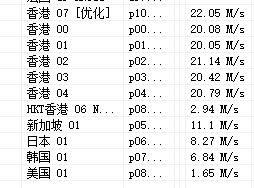
安利个v2ray
主要用的微软的服务器 国内百度云中转
33ss.xyz

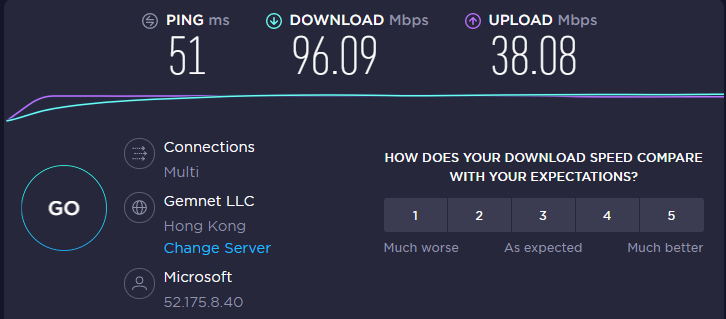
测速

本地电信300M
批注 2019-12-26 235231.png
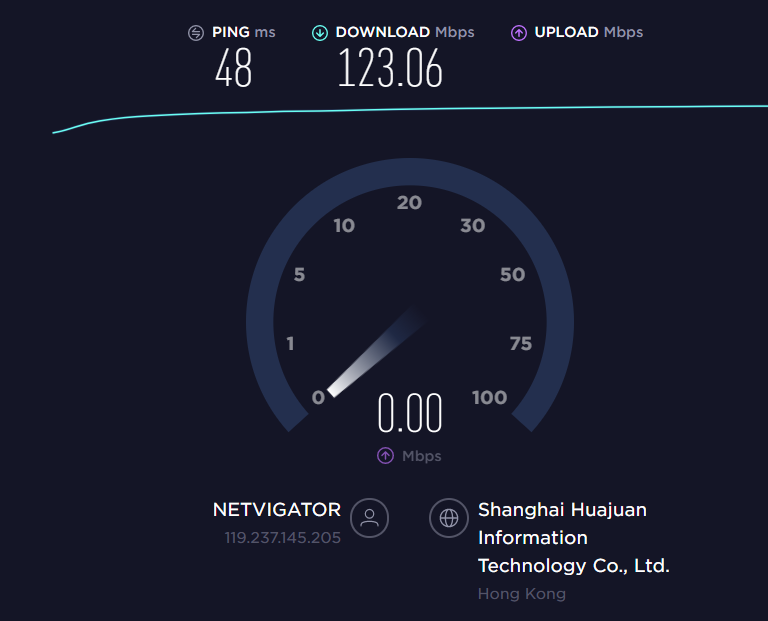
香港微软
批注 2019-12-19 124014.png
香港hkt Netflix支持
批注 2019-12-19 124846.png
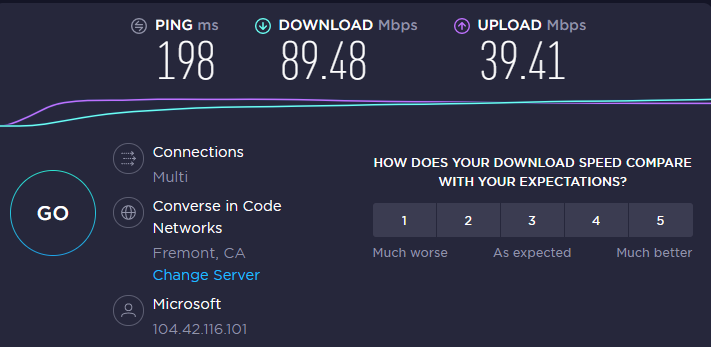
美国微软
批注 2019-12-19 125727.png
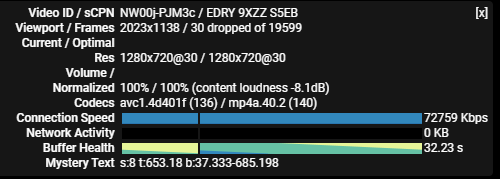
YouTube
批注 2019-12-19 132303.png

注意:测速结果只反映当时速度,实际速度以自己使用为准

价格

1元试用套餐了,可以试用满意再购买
1.年付128GB每月 360天 88元
2.年付256GB每月 360天 128元
3.年付512GB每月 360天 198元
4.年付1T每月 360天 288元
支持支付宝充值
按自己使用量购买 感觉他家流量跑得多
温馨提示:所有机场都有跑路风险,按需上车
注册链接:https://pud.life/aff/2MfZ

节点地区

香港Netflix 日本Netflix 新加坡 韩国 美国
支持订阅的客户端:V2ray Clash Quantumult Quantumult X Surge

说明:老毛子系统路由器使用v2ray科学上网的配置方法。本文使用新路由3 h大的最新版固件 配置前请确认节点状态可用。

导出节点

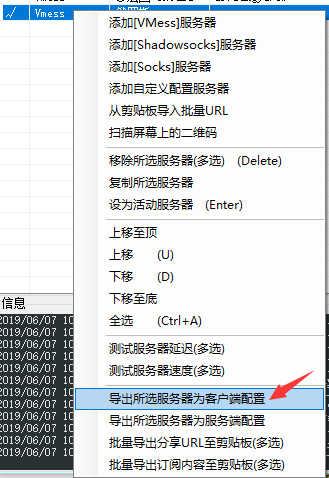
1.在电脑上将正常的节点导出为客户端json
TIM截图20190607105234.png
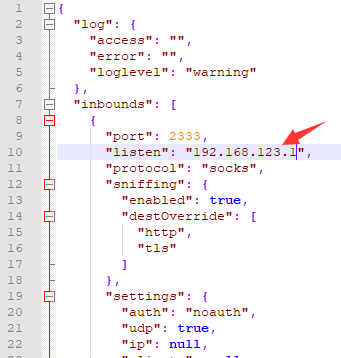
2.修改json第10行"listen"为路由器的管理地址
TIM截图20190607105402.png

路由器上v2ray设置

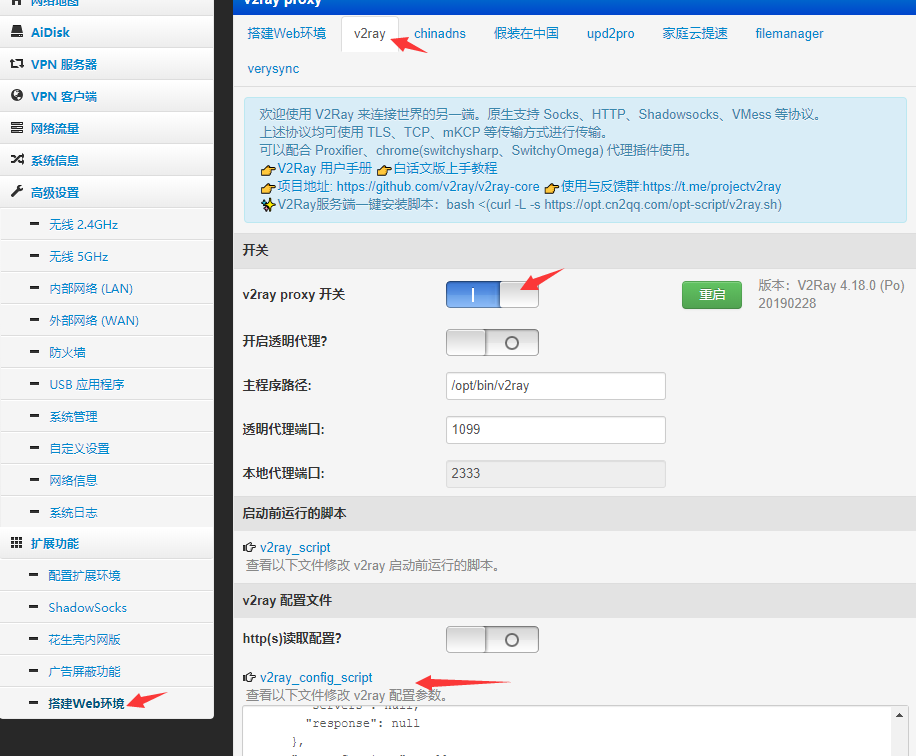
1.搭建Web环境==>v2ray==>v2ray proxy 开关 打开==>粘贴v2ray_config_script==>应用本页设置
TIM截图20190607105551.png

transocks设置

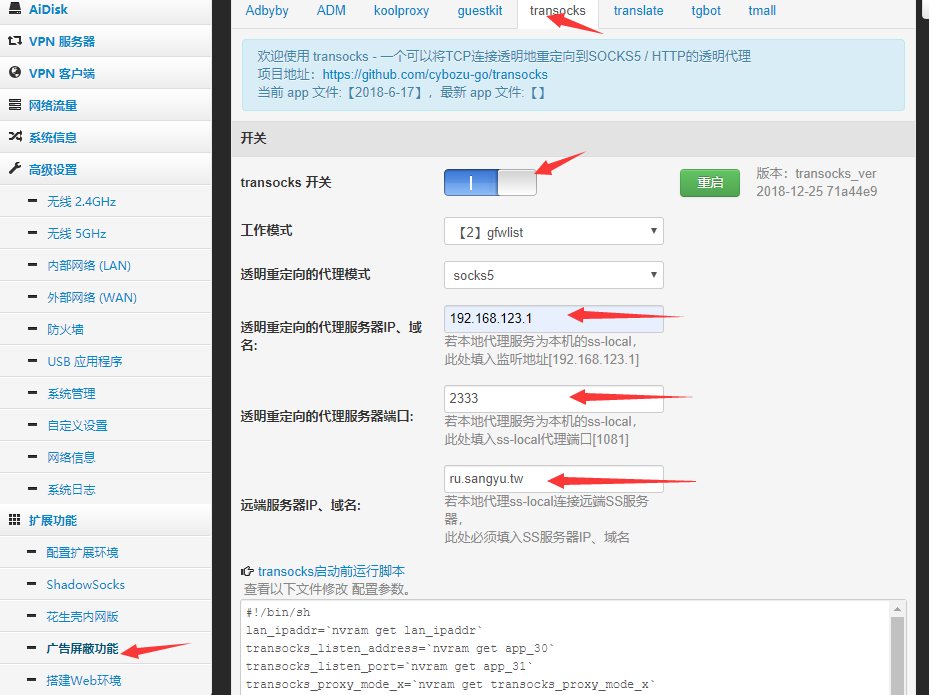
广告屏蔽功能==>transocks==>transocks 开关 打开
透明重定向的代理服务器IP、域名:路由器的管理IP
透明重定向的代理服务器端口:json文件第9行的端口
远端服务器IP、域名:v2ray节点的域名或者IP
TIM截图20190607111955.png

说明:这几天敏感时期,大家都知道。IP换了几次了,还被墙,难受,套cf

地址

https://dash.cloudflare.com/

步骤

1.cf中添加网站
2.域名管理修改ns服务器为cf的,等待生效
3.云朵点亮,开启cdn
4.ssl crypto==>ssl选择full(strict)因为原来是开启了ssl的

参考:
https://zh.shellman.me/articles/my-best-practice-series-of-cloudeflare-1/

https://www.itbulu.com/cloudflare-ssl.html

另外:最近遇到个奇怪的问题,留言正常,发表文章就会出现502错误。有没有大佬指点下?

说明个人理解:用于内网穿透,moon相当于中转服务器。
安装环境 Debian 8

安装zerotier

curl -s https://install.zerotier.com/ | bash
cd /var/lib/zerotier-one #进入目录
./zerotier-cli join xxxxxxxxxxxxxxxx #id是之前申请好的,成功会返回 200 jion ok

生成及修改 moon.json

zerotier-idtool initmoon identity.public >>moon.json #在当前目录下生成一个文件 moon.json
vi moon.json #修改 "stableEndpoints" 为当前公网ip 如:
# "stableEndpoints": [ "1.2.3.4/9993","2001:abcd:abcd::1/9993" ] ipv4和ipv6之间用,隔开,防火墙放行端口
zerotier-idtool genmoon moon.json #生成签名文件 000000xxxxxxxxxx.moon
在 /var/lib/zerotier-one 目录下建立子文件夹 moons.d
将生成的 000000xxxxxxxxxx.moon 拷贝进 moons.d 文件夹中,并重启服务器
/etc/init.d/zerotier-one restart

内网机器连接上moon节点

zerotier-cli orbit xxxxxxxxxx xxxxxxxxxx #其中xxxxxxxxxx为节点服务器的 ZeroTier address

zerotier卸载

#Debian/Ubuntu
apt-get purge zerotier-one
#CentOS卸载命令如下所示:
yum remove  zerotier-one

说明:服务器上无法管理数据库,不知道哪里出问题了,所以下载了Navicat,这个版本是12.0.24
TIM截图20190516155500.png

下载地址

https://pan.baidu.com/s/1ZxO06G7Xy6SqGzHLZnp76g 密码:bjy3

步骤

1.管理员运行cmd,切换到目录下
2.执行命令
Patch.exe "安装目录\navicat.exe"
3.
Keygen.exe RegPrivateKey.pem
执行后会生成key,断网,打开软件把key粘贴进去,点击注册,点击手动注册
手动注册后后出现一个请求码的界面,把请求码复制粘贴到命令提示符中按两下回车会生成激活码
激活码粘贴到软件中,激活成功

说明:上次说到微博图床的解决办法,但是不完美,考虑到以后,还是先下载下来。

数据库备份

先备份一次数据库,如果出错还有救。方便下面操作,数据库命名为:190425.sql

图片本地化

1.xshell切换到数据库目录
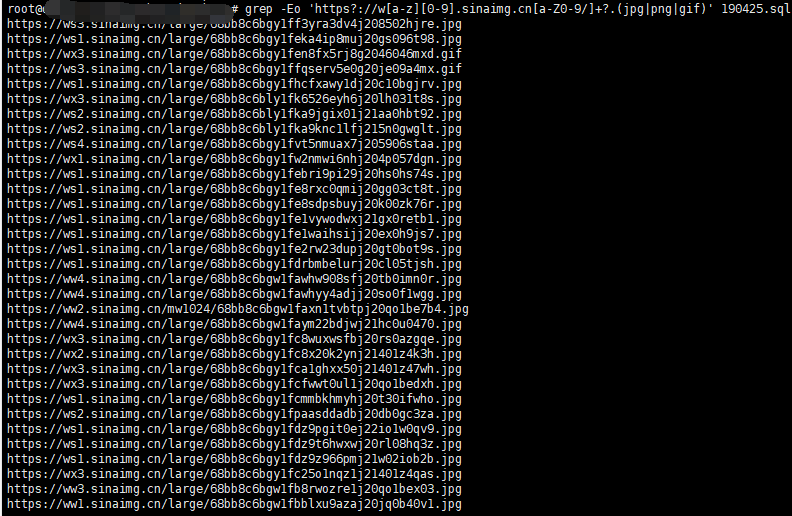
2.查找微博图片
grep -Eo 'https?://w[a-z][0-9].sinaimg.cn[a-Z0-9/]+?.(jpg|png|gif)' 190425.sql
TIM20190516150835.png
3.下载所有图片到服务器
for i in `grep -Eo 'https?://w[a-z][0-9].sinaimg.cn[a-Z0-9/]+?.(jpg|png|gif)' 190425.sql`;do wget $i;done

修改图片路径

1.搜索了下MySQL不支持正则替换。我不是专业的,会的大哥些请指正
UPDATE typecho_contents SET text = REPLACE( text, 'ws1.sinaimg.cn', 'sixu.life');
暂时发现的微博域名有以下这些:

ws1.sinaimg.cn
ws2.sinaimg.cn
ws3.sinaimg.cn
ws4.sinaimg.cn

wx1.sinaimg.cn
wx2.sinaimg.cn
wx3.sinaimg.cn
wx4.sinaimg.cn

ww2.sinaimg.cn
ww4.sinaimg.cn

参考:https://hqidi.com/144.html