Debian 限速
#安装wondershaper:
apt-get install wondershaper

#限制上传带宽为10M
wondershaper -a eth0 -u 10240

#限制下、上行带宽(单位Kb): 下载限制为200K,上传24K
wondershaper eth0 200 24

#取消限制:
wondershaper clear eth0#安装wondershaper:
apt-get install wondershaper
#限制上传带宽为10M
wondershaper -a eth0 -u 10240
#限制下、上行带宽(单位Kb): 下载限制为200K,上传24K
wondershaper eth0 200 24
#取消限制:
wondershaper clear eth0#!/bin/bash
#write by zhumaohai(admin#centos.bz)
#author blog: www.centos.bz
#显示菜单(单选)
display_menu(){
local soft=$1
local prompt="which ${soft} you'd select: "
eval local arr=(\${${soft}_arr[@]})
while true
do
echo -e "#################### ${soft} setting ####################\n\n"
for ((i=1;i<=${#arr[@]};i++ )); do echo -e "$i) ${arr[$i-1]}"; done
echo
read -p "${prompt}" $soft
eval local select=\$$soft
if [ "$select" == "" ] || [ "${arr[$soft-1]}" == "" ];then
prompt="input errors,please input a number: "
else
eval $soft=${arr[$soft-1]}
eval echo "your selection: \$$soft"
break
fi
done
}
#把带宽bit单位转换为人类可读单位
bit_to_human_readable(){
#input bit value
local trafficValue=$1
if [[ ${trafficValue%.*} -gt 922 ]];then
#conv to Kb
trafficValue=`awk -v value=$trafficValue 'BEGIN{printf "%0.1f",value/1024}'`
if [[ ${trafficValue%.*} -gt 922 ]];then
#conv to Mb
trafficValue=`awk -v value=$trafficValue 'BEGIN{printf "%0.1f",value/1024}'`
echo "${trafficValue}Mb"
else
echo "${trafficValue}Kb"
fi
else
echo "${trafficValue}b"
fi
}
#判断包管理工具
check_package_manager(){
local manager=$1
local systemPackage=''
if cat /etc/issue | grep -q -E -i "ubuntu|debian";then
systemPackage='apt'
elif cat /etc/issue | grep -q -E -i "centos|red hat|redhat";then
systemPackage='yum'
elif cat /proc/version | grep -q -E -i "ubuntu|debian";then
systemPackage='apt'
elif cat /proc/version | grep -q -E -i "centos|red hat|redhat";then
systemPackage='yum'
else
echo "unkonw"
fi
if [ "$manager" == "$systemPackage" ];then
return 0
else
return 1
fi
}
#实时流量
realTimeTraffic(){
local eth=""
local nic_arr=(`ifconfig | grep -E -o "^[a-z0-9]+" | grep -v "lo" | uniq`)
local nicLen=${#nic_arr[@]}
if [[ $nicLen -eq 0 ]]; then
echo "sorry,I can not detect any network device,please report this issue to author."
exit 1
elif [[ $nicLen -eq 1 ]]; then
eth=$nic_arr
else
display_menu nic
eth=$nic
fi
local clear=true
local eth_in_peak=0
local eth_out_peak=0
local eth_in=0
local eth_out=0
while true;do
#移动光标到0:0位置
printf "\033[0;0H"
#清屏并打印Now Peak
[[ $clear == true ]] && printf "\033[2J" && echo "$eth--------Now--------Peak-----------"
traffic_be=(`awk -v eth=$eth -F'[: ]+' '{if ($0 ~eth){print $3,$11}}' /proc/net/dev`)
sleep 2
traffic_af=(`awk -v eth=$eth -F'[: ]+' '{if ($0 ~eth){print $3,$11}}' /proc/net/dev`)
#计算速率
eth_in=$(( (${traffic_af[0]}-${traffic_be[0]})*8/2 ))
eth_out=$(( (${traffic_af[1]}-${traffic_be[1]})*8/2 ))
#计算流量峰值
[[ $eth_in -gt $eth_in_peak ]] && eth_in_peak=$eth_in
[[ $eth_out -gt $eth_out_peak ]] && eth_out_peak=$eth_out
#移动光标到2:1
printf "\033[2;1H"
#清除当前行
printf "\033[K"
printf "%-20s %-20s\n" "Receive: $(bit_to_human_readable $eth_in)" "$(bit_to_human_readable $eth_in_peak)"
#清除当前行
printf "\033[K"
printf "%-20s %-20s\n" "Transmit: $(bit_to_human_readable $eth_out)" "$(bit_to_human_readable $eth_out_peak)"
[[ $clear == true ]] && clear=false
done
}
#流量和连接概览
trafficAndConnectionOverview(){
if ! which tcpdump > /dev/null;then
echo "tcpdump not found,going to install it."
if check_package_manager apt;then
apt-get -y install tcpdump
elif check_package_manager yum;then
yum -y install tcpdump
fi
fi
local reg=""
local eth=""
local nic_arr=(`ifconfig | grep -E -o "^[a-z0-9]+" | grep -v "lo" | uniq`)
local nicLen=${#nic_arr[@]}
if [[ $nicLen -eq 0 ]]; then
echo "sorry,I can not detect any network device,please report this issue to author."
exit 1
elif [[ $nicLen -eq 1 ]]; then
eth=$nic_arr
else
display_menu nic
eth=$nic
fi
echo "please wait for 10s to generate network data..."
echo
#当前流量值
local traffic_be=(`awk -v eth=$eth -F'[: ]+' '{if ($0 ~eth){print $3,$11}}' /proc/net/dev`)
#tcpdump监听网络
tcpdump -v -i $eth -tnn > /tmp/tcpdump_temp 2>&1 &
sleep 10
clear
kill `ps aux | grep tcpdump | grep -v grep | awk '{print $2}'`
#10s后流量值
local traffic_af=(`awk -v eth=$eth -F'[: ]+' '{if ($0 ~eth){print $3,$11}}' /proc/net/dev`)
#打印10s平均速率
local eth_in=$(( (${traffic_af[0]}-${traffic_be[0]})*8/10 ))
local eth_out=$(( (${traffic_af[1]}-${traffic_be[1]})*8/10 ))
echo -e "\033[32mnetwork device $eth average traffic in 10s: \033[0m"
echo "$eth Receive: $(bit_to_human_readable $eth_in)/s"
echo "$eth Transmit: $(bit_to_human_readable $eth_out)/s"
echo
local regTcpdump=$(ifconfig | grep -A 1 $eth | awk -F'[: ]+' '$0~/inet addr:/{printf $4"|"}' | sed -e 's/|$//' -e 's/^/(/' -e 's/$/)\\\\\.[0-9]+:/')
#新旧版本tcpdump输出格式不一样,分别处理
if awk '/^IP/{print;exit}' /tmp/tcpdump_temp | grep -q ")$";then
#处理tcpdump文件
awk '/^IP/{print;getline;print}' /tmp/tcpdump_temp > /tmp/tcpdump_temp2
else
#处理tcpdump文件
awk '/^IP/{print}' /tmp/tcpdump_temp > /tmp/tcpdump_temp2
sed -i -r 's#(.*: [0-9]+\))(.*)#\1\n \2#' /tmp/tcpdump_temp2
fi
awk '{len=$NF;sub(/\)/,"",len);getline;print $0,len}' /tmp/tcpdump_temp2 > /tmp/tcpdump
#统计每个端口在10s内的平均流量
echo -e "\033[32maverage traffic in 10s base on server port: \033[0m"
awk -F'[ .:]+' -v regTcpdump=$regTcpdump '{if ($0 ~ regTcpdump){line="clients > "$8"."$9"."$10"."$11":"$12}else{line=$2"."$3"."$4"."$5":"$6" > clients"};sum[line]+=$NF*8/10}END{for (line in sum){printf "%s %d\n",line,sum[line]}}' /tmp/tcpdump | \
sort -k 4 -nr | head -n 10 | while read a b c d;do
echo "$a $b $c $(bit_to_human_readable $d)/s"
done
echo -ne "\033[11A"
echo -ne "\033[50C"
echo -e "\033[32maverage traffic in 10s base on client port: \033[0m"
awk -F'[ .:]+' -v regTcpdump=$regTcpdump '{if ($0 ~ regTcpdump){line=$2"."$3"."$4"."$5":"$6" > server"}else{line="server > "$8"."$9"."$10"."$11":"$12};sum[line]+=$NF*8/10}END{for (line in sum){printf "%s %d\n",line,sum[line]}}' /tmp/tcpdump | \
sort -k 4 -nr | head -n 10 | while read a b c d;do
echo -ne "\033[50C"
echo "$a $b $c $(bit_to_human_readable $d)/s"
done
echo
#统计在10s内占用带宽最大的前10个ip
echo -e "\033[32mtop 10 ip average traffic in 10s base on server: \033[0m"
awk -F'[ .:]+' -v regTcpdump=$regTcpdump '{if ($0 ~ regTcpdump){line=$2"."$3"."$4"."$5" > "$8"."$9"."$10"."$11":"$12}else{line=$2"."$3"."$4"."$5":"$6" > "$8"."$9"."$10"."$11};sum[line]+=$NF*8/10}END{for (line in sum){printf "%s %d\n",line,sum[line]}}' /tmp/tcpdump | \
sort -k 4 -nr | head -n 10 | while read a b c d;do
echo "$a $b $c $(bit_to_human_readable $d)/s"
done
echo -ne "\033[11A"
echo -ne "\033[50C"
echo -e "\033[32mtop 10 ip average traffic in 10s base on client: \033[0m"
awk -F'[ .:]+' -v regTcpdump=$regTcpdump '{if ($0 ~ regTcpdump){line=$2"."$3"."$4"."$5":"$6" > "$8"."$9"."$10"."$11}else{line=$2"."$3"."$4"."$5" > "$8"."$9"."$10"."$11":"$12};sum[line]+=$NF*8/10}END{for (line in sum){printf "%s %d\n",line,sum[line]}}' /tmp/tcpdump | \
sort -k 4 -nr | head -n 10 | while read a b c d;do
echo -ne "\033[50C"
echo "$a $b $c $(bit_to_human_readable $d)/s"
done
echo
#统计连接状态
local regSS=$(ifconfig | grep -A 1 $eth | awk -F'[: ]+' '$0~/inet addr:/{printf $4"|"}' | sed -e 's/|$//')
ss -an | grep -v -E "LISTEN|UNCONN" | grep -E "$regSS" > /tmp/ss
echo -e "\033[32mconnection state count: \033[0m"
awk 'NR>1{sum[$(NF-4)]+=1}END{for (state in sum){print state,sum[state]}}' /tmp/ss | sort -k 2 -nr
echo
#统计各端口连接状态
echo -e "\033[32mconnection state count by port base on server: \033[0m"
awk 'NR>1{sum[$(NF-4),$(NF-1)]+=1}END{for (key in sum){split(key,subkey,SUBSEP);print subkey[1],subkey[2],sum[subkey[1],subkey[2]]}}' /tmp/ss | sort -k 3 -nr | head -n 10
echo -ne "\033[11A"
echo -ne "\033[50C"
echo -e "\033[32mconnection state count by port base on client: \033[0m"
awk 'NR>1{sum[$(NF-4),$(NF)]+=1}END{for (key in sum){split(key,subkey,SUBSEP);print subkey[1],subkey[2],sum[subkey[1],subkey[2]]}}' /tmp/ss | sort -k 3 -nr | head -n 10 | awk '{print "\033[50C"$0}'
echo
#统计端口为80且状态为ESTAB连接数最多的前10个IP
echo -e "\033[32mtop 10 ip ESTAB state count at port 80: \033[0m"
cat /tmp/ss | grep ESTAB | awk -F'[: ]+' '{sum[$(NF-2)]+=1}END{for (ip in sum){print ip,sum[ip]}}' | sort -k 2 -nr | head -n 10
echo
#统计端口为80且状态为SYN-RECV连接数最多的前10个IP
echo -e "\033[32mtop 10 ip SYN-RECV state count at port 80: \033[0m"
cat /tmp/ss | grep -E "$regSS" | grep SYN-RECV | awk -F'[: ]+' '{sum[$(NF-2)]+=1}END{for (ip in sum){print ip,sum[ip]}}' | sort -k 2 -nr | head -n 10
}
main(){
while true; do
echo -e "1) real time traffic.\n2) traffic and connection overview.\n"
read -p "please input your select(ie 1): " select
case $select in
1) realTimeTraffic;break;;
2) trafficAndConnectionOverview;break;;
*) echo "input error,please input a number.";;
esac
done
}
main来源:
Linux运维日志 » 网络分析shell脚本(实时流量+连接统计)
https://www.centos.bz/2014/06/shell-script-for-network-analysis/
vi /etc/apt/sources.list
deb https://mirrors.ustc.edu.cn/debian stretch main contrib non-free
deb https://mirrors.ustc.edu.cn/debian stretch-updates main contrib non-free
deb https://mirrors.ustc.edu.cn/debian stretch-backports main contrib non-free
deb https://mirrors.ustc.edu.cn/debian-security/ stretch/updates main contrib non-free
apt-get update && apt-get upgrade
https://www.feiji.work/2019/20.htmlwget https://www.feiji.work/n1/bt/6.9.4/install.sh && sudo bash install.sh
安装完成可能有错误提示 直接reboot重启
查看面板入口:/etc/init.d/bt default
https://www.feiji.work/2019/41.html
打开ssh(注:如果以下步骤提示缺少文件,可以在宝塔后台执行一次安装Nginx,在下载完脚本后直接取消安装即可。)
cd /www/server/panel/install #如果目录存在nginx 先rm
wget https://www.feiji.work/n1/bt/nginx.sh 下载nginx.sh
sh nginx.sh install #直接安装安装Nginx出现checking for GD library ... not found错误
https://de.lib.im/linux-gd.htmlapt-get -y install libgd2-xpm-dev build-essential重新安装
报错Starting nginx... nginx: [emerg] getpwnam("www") failed in /www/server/nginx/conf/nginx.conf:1
https://blog.csdn.net/rebel_yangke/article/details/58601731
修改/www/server/nginx/conf/nginx.conf 两个www改成root 再重启
https://xaolong.com/post/279.html
https://malagege.github.io/blog/2019/01/26/Linux%E4%BD%BF%E7%94%A8pppoe%E9%80%A3%E7%B7%9A%E6%96%B9%E6%B3%95%E5%B0%8F%E8%A8%98/
apt install pppoeconf -y
apt install isc-dhcp-server -y

vi /etc/default/isc-dhcp-server
#将INTERFACESv4=""修改为INTERFACESv4="br0"
#在INTERFACESv6=""的前面加个#,修改为#INTERFACESv6=""

mv /etc/dhcp/dhcpd.conf /etc/dhcp/dhcpd.conf.bak

vi /etc/dhcp/dhcpd.conf  ###里面的所有内容
###
option domain-name "phicomm-n1";
option domain-name-servers 119.29.29.29;
subnet 192.168.1.0 netmask 255.255.255.0 {
    range 192.168.1.101 192.168.1.254;
    option subnet-mask 255.255.255.0;
    option broadcast-address 192.168.1.255;
    option routers 192.168.1.2;
    option domain-name-servers 119.29.29.29;
}
default-lease-time 600;
max-lease-time 7200;
authoritative;
###

vi /etc/network/interfaces
#iface eth0 inet dhcp 改为iface eth0 inet manual 后面增加以下内容 ###里面的全部 见图一
###
auto br0
iface br0 inet static
bridge_ports eth0
address 192.168.1.2
broadcast 192.168.1.255
network 192.168.1.0
netmask 255.255.255.0
gateway 192.168.1.2
bridge_stp off
bridge_waitport 0
bridge_fd 0
###

vi /etc/sysctl.conf
#去掉net.ipv4.ip_forward=1前面的#号

sysctl -p

vi  /etc/rc.local
#在 exit 0 前一行加以下内容
iptables -t nat -A POSTROUTING -j MASQUERADE

reboot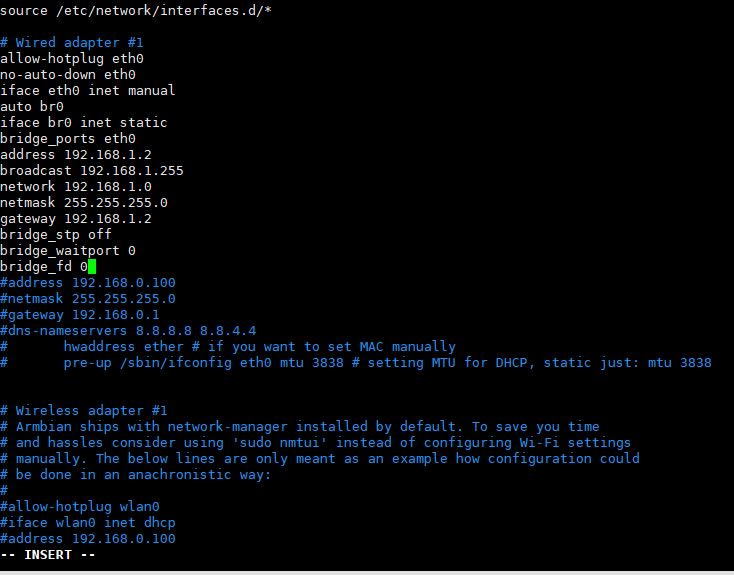
n1接光猫 #n1已经固定IP 192.168.1.2
pppoeconf #进入拨号向导
#第一个选no
#删除username 输入宽带账号
#输入宽带密码
#之后全部 yes

poff -a # 關閉全部pppoe

查看状态
plog
ip addr show ppp0

开机自动拨号
vi /etc/rc.local #在 exit 0 前一行加一句:
pon dsl-provider账号密码配置文件地址/etc/ppp/pap-secrets
https://github.com/NewFuture/DDNS
git clone https://github.com/NewFuture/DDNS
cd DDNS
./run.py #运行一次 生成config.json配置文件
vi config.json #修改 id 域名 token
./task.sh说明:Debian8宝塔面板安装运行环境php失败,编译安装和极速安装都失败了。
checking for cURL in default path... not found
configure: error: Please reinstall the libcurl distribution -
easy.h should be in <curl-dir>/include/curl/
make: *** No targets specified and no makefile found.  Stop.
make: *** No rule to make target 'install'. Stop.apt-get install curl
apt-get install libcurl4-gnutls-dev说明:买的阿里云国内学生机,一年114.开通后第一件事当然是重装。装完后发现国外源"snapshot.debian.org"特别慢,遂换成国内的。
VPS一键重装Debian系统
vi /etc/apt/sources.list
加#注释掉原来的,并添加阿里云源地址
deb http://mirrors.aliyun.com/debian stretch main contrib non-free
deb-src http://mirrors.aliyun.com/debian stretch main contrib non-free
deb http://mirrors.aliyun.com/debian stretch-updates main contrib non-free
deb-src http://mirrors.aliyun.com/debian stretch-updates main contrib non-free
deb http://mirrors.aliyun.com/debian-security stretch/updates main contrib non-free
deb-src http://mirrors.aliyun.com/debian-security stretch/updates main contrib non-free
stretch可以替换成jessie或者wheezy
保存后执行apt-get update
参考:
http://ningxy.cn/Debian%209%20%E6%8D%A2%E9%98%BF%E9%87%8C%E5%8C%85%E6%BA%90.html
不支持OpenVZ的虚拟化构架
只适用于由GRUB引导的VPS
重装前请务必备份好重要数据,后果自负
重装需要20-40分钟不等的时间,期间无法连接服务器,请耐心等待,有vnc的面板可以通过vnc查看安装进度
Debian / Ubuntu 系统:
apt-get update
apt-get install -y gawk sed grep
RHEL / CentOS 系统:
yum install -y gawk sed grepwget --no-check-certificate -qO DebianNET.sh 'https://moeclub.org/attachment/LinuxShell/DebianNET.sh' && chmod -x DebianNET.sh安装Debian 7 32位:bash DebianNET.sh -d 7 -v 32 -a
安装Debian 7 64位:bash DebianNET.sh -d 7 -v 64 -a
安装Debian 8 32位:bash DebianNET.sh -d 8 -v 32 -a
安装Debian 8 64位:bash DebianNET.sh -d 8 -v 64 -a
安装Debian 9 32位:bash DebianNET.sh -d 9 -v 32 -a
安装Debian 9 64位:bash DebianNET.sh -d 9 -v 64 -a
默认root密码:MoeClub.org,安装完成后请立即更改密码.passwd root
1、依赖安装
apt-get update
apt-get install git wget python-setuptools -y
apt-get install python-pip
pip install cymysql
2、libsodium 安装
apt-get install build-essential -y
wget https://github.com/jedisct1/libsodium/releases/download/1.0.16/libsodium-1.0.16.tar.gz
tar xf libsodium-1.0.16.tar.gz && cd libsodium-1.0.16
./configure && make -j2 && make install
echo /usr/local/lib > /etc/ld.so.conf.d/usr_local_lib.conf
ldconfig
cd ../ && rm -rf libsodium*
3、下载源代码并安装依赖
git clone -b manyuser https://github.com/Anankke/shadowsocks.git
cd shadowsocks
pip install -r requirements.txt
4、配置文件
cp apiconfig.py userapiconfig.py
cp config.json user-config.json
vi userapiconfig.py
5、运行SSR
python server.py 用于调试的
./run.sh 无日志后台运行
./logrun.sh 有日志后台运行
6、开机启动
假设你的shadowsocks是安装在root目录下,可以这样:vi /etc/rc.local
加入一条:sh /root/shadowsocks/run.sh
然后:chmod +x /etc/rc.local
Debian 9开机启动 https://sixu.life/debian-9-etc-rc-local.html
7、使用Supervisor守护进程启动ssr
# 安装
apt-get install supervisor -y

# 写入配置
vi /etc/supervisor/conf.d/ssr.conf

# 写入以下内容
[program:ssr]
command=python /root/shadowsocks/server.py
autorestart=true
autostart=true
user=root

# 重启Supervisor服务。
/etc/init.d/supervisor restart

# 重启 ssr
supervisorctl restart ssr

# 查看Supervisor服务运行状态。
supervisorctl status

# 如果遇到问题,可以检查日志:
supervisorctl tail -f ssr stderr

# 如果使用supervisor进程守护,需要修改文件vi /etc/default/supervisor,添加一行:
ulimit -n 1024000
8、加速
Debian OpenVZ 魔改 BBR:https://sixu.life/debian-openvz-magic-change-bbr.html
Debian centos bbr加速:https://sixu.life/the-acceleration-effect-of-bbr-is-obvious.html
Debian 7 x64系统中运行apt-get安装软件时出现如下错误提示:
Media change: please insert the disc labeled 'Debian GNU/Linux 7.0.0 _Wheezy_ - Official amd64 CD Binary-1 20130504-14:44' in the drive '/media/cdrom/' and press entergoogle发现原来是apt的问题。
1、编辑文件vi /etc/apt/sources.list
2、在deb cdrom:[Debian GNU/Linux 7.0.0 _Wheezy_ - Official amd64 CD Binary-1 20130504-14:44]/ wheezy main前加#号注释掉这行
3、更新下deb仓库apt-get update