标签 ssh 下的文章

说明:
一款hkt的nat机 只开放80和443 做站或者v2ray ws 自备一个域名
實驗性產品 只開放1個SSH端口 NAT建站共用80、443端口 有效防止IP被阻斷
¥12.99/月
1 Core vCPU
256 MB 內存
5 GB 硬碟
500 Mbps 共享頻寬
500 GB 流量
1个 SSH端口
NAT建站 共享80、443
HKT商寬線路
解鎖Netflix TVB HKTV ViuTV
官网:https://anyhk.net/aff.php?aff=86

简单测速

联通
联通 beta

电信
电信

移动
移动

小鸡本地测试
speedtest

连接ssh

1.获取IP
小鸡没有公共ddns 需要自建ddns 但是beta款不会频繁更换IP 所以自备一个域名解析到IP即可
用面板自带的vnc ssh终端 root密码在面板复制
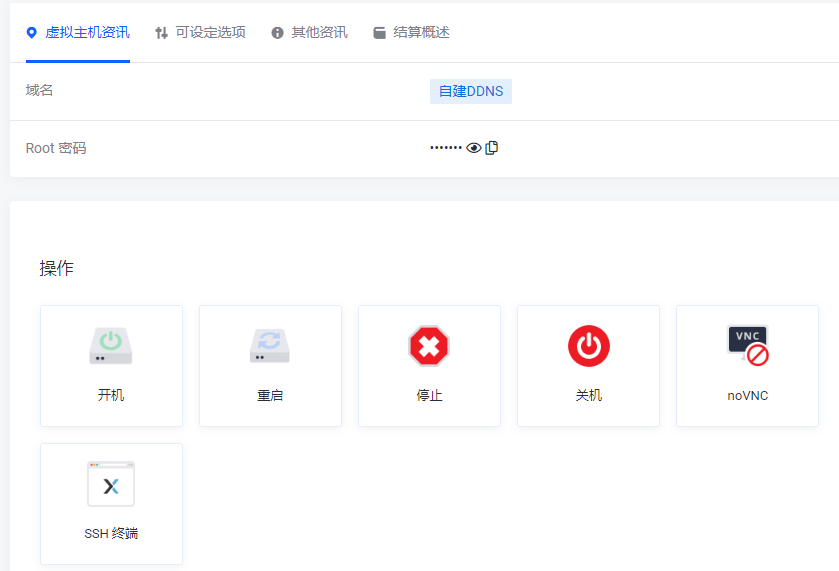
批注 2020-02-29 010609.png
粘贴的快捷键 shift+insert
登录后在终端输入命令curl ip.sb即可看到自己当前的IP 把自己的域名解析到此IP
2.添加端口
在端口管理添加一个用于ssh连接的外网端口
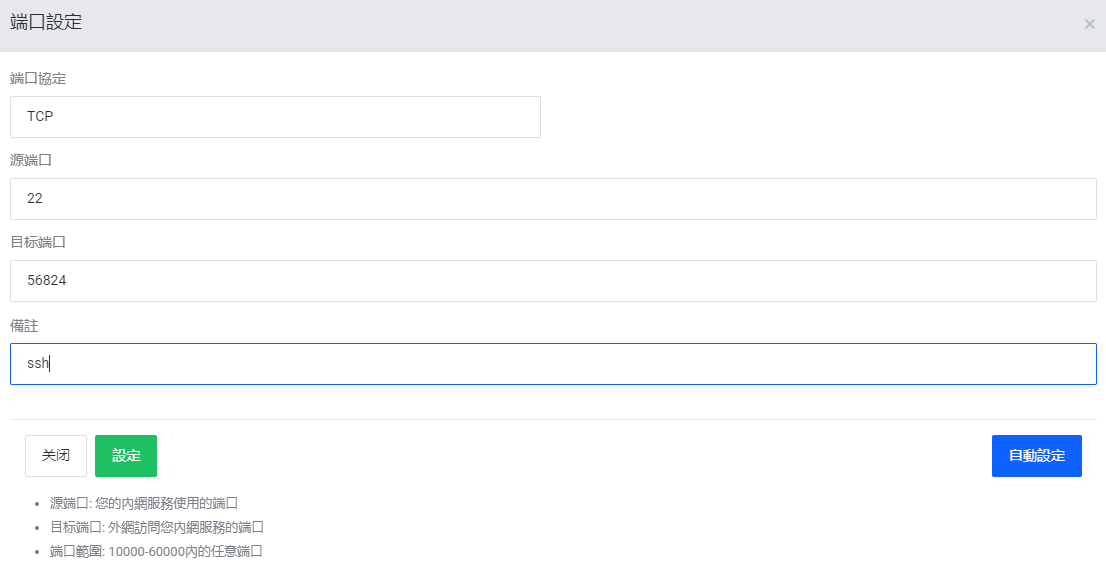
批注 2020-02-29 011716.png
连接的时候用 域名:56824进行连接

安装v2ray

1.一键安装
bash <(curl -L -s https://install.direct/go.sh)
2.修改配置为ws
路径 /etc/v2ray/config.json
建议直接删除原文件rm /etc/v2ray/config.json
新建文件vi /etc/v2ray/config.json
粘贴以下模板 注意修改正确的uuid 可以使用原文档的或者自己现有的

{
  "inbounds": [{
    "port": 55555, #此端口在后面反代要用
    "protocol": "vmess",
    "settings": {
      "clients": [
        {
          "id": "xxxxxxx", #uuid 客户端连接要用
          "level": 1,
          "alterId": 0
        }
      ]
    },
      "streamSettings": {
        "network":"ws"
      }    
  }],
  "outbounds": [{
      "protocol": "freedom",  
      "settings": {}
  },{
    "protocol": "blackhole",
    "settings": {},
    "tag": "blocked"
  }],
  "routing": {
    "rules": [
      {
        "type": "field",
        "ip": ["geoip:private"],
        "outboundTag": "blocked"
      }
    ]
  }
}

3.重启v2ray
service v2ray restart

反代WebSocket

参看雷老板的教程
https://docs.anyhk.net/anyhk-nat/nat-jian-zhan/websocket
官网链接:https://anyhk.net/aff.php?aff=86

换源

vi /etc/apt/sources.list

deb https://mirrors.ustc.edu.cn/debian stretch main contrib non-free
deb https://mirrors.ustc.edu.cn/debian stretch-updates main contrib non-free
deb https://mirrors.ustc.edu.cn/debian stretch-backports main contrib non-free
deb https://mirrors.ustc.edu.cn/debian-security/ stretch/updates main contrib non-free

apt-get update && apt-get upgrade

安装宝塔

https://www.feiji.work/2019/20.html
wget https://www.feiji.work/n1/bt/6.9.4/install.sh && sudo bash install.sh
安装完成可能有错误提示 直接reboot重启
查看面板入口:/etc/init.d/bt default

安装nginx

https://www.feiji.work/2019/41.html

打开ssh(注:如果以下步骤提示缺少文件,可以在宝塔后台执行一次安装Nginx,在下载完脚本后直接取消安装即可。)

cd /www/server/panel/install #如果目录存在nginx 先rm
wget https://www.feiji.work/n1/bt/nginx.sh 下载nginx.sh
sh nginx.sh install #直接安装

安装Nginx出现checking for GD library ... not found错误
https://de.lib.im/linux-gd.html
apt-get -y install libgd2-xpm-dev build-essential重新安装

报错Starting nginx... nginx: [emerg] getpwnam("www") failed in /www/server/nginx/conf/nginx.conf:1
https://blog.csdn.net/rebel_yangke/article/details/58601731
修改/www/server/nginx/conf/nginx.conf 两个www改成root 再重启

pppoe宽带拨号

https://xaolong.com/post/279.html
https://malagege.github.io/blog/2019/01/26/Linux%E4%BD%BF%E7%94%A8pppoe%E9%80%A3%E7%B7%9A%E6%96%B9%E6%B3%95%E5%B0%8F%E8%A8%98/

apt install pppoeconf -y
apt install isc-dhcp-server -y

vi /etc/default/isc-dhcp-server
#将INTERFACESv4=""修改为INTERFACESv4="br0"
#在INTERFACESv6=""的前面加个#,修改为#INTERFACESv6=""

mv /etc/dhcp/dhcpd.conf /etc/dhcp/dhcpd.conf.bak

vi /etc/dhcp/dhcpd.conf  ###里面的所有内容
###
option domain-name "phicomm-n1";
option domain-name-servers 119.29.29.29;
subnet 192.168.1.0 netmask 255.255.255.0 {
    range 192.168.1.101 192.168.1.254;
    option subnet-mask 255.255.255.0;
    option broadcast-address 192.168.1.255;
    option routers 192.168.1.2;
    option domain-name-servers 119.29.29.29;
}
default-lease-time 600;
max-lease-time 7200;
authoritative;
###

vi /etc/network/interfaces
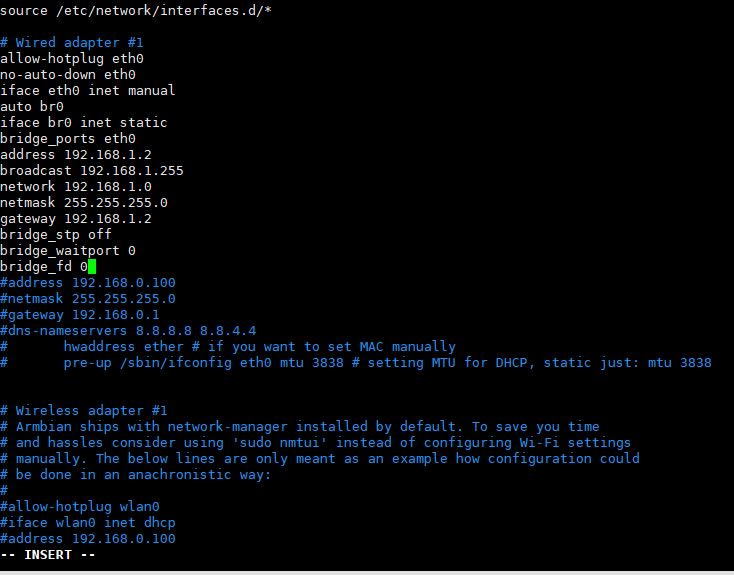
#iface eth0 inet dhcp 改为iface eth0 inet manual 后面增加以下内容 ###里面的全部 见图一
###
auto br0
iface br0 inet static
bridge_ports eth0
address 192.168.1.2
broadcast 192.168.1.255
network 192.168.1.0
netmask 255.255.255.0
gateway 192.168.1.2
bridge_stp off              
bridge_waitport 0           
bridge_fd 0
###

vi /etc/sysctl.conf
#去掉net.ipv4.ip_forward=1前面的#号

sysctl -p

vi  /etc/rc.local
#在 exit 0 前一行加以下内容
iptables -t nat -A POSTROUTING -j MASQUERADE

reboot

批注 2019-12-29 185147.png

n1接光猫 #n1已经固定IP 192.168.1.2

pppoeconf #进入拨号向导
#第一个选no
#删除username 输入宽带账号
#输入宽带密码
#之后全部 yes

poff -a # 關閉全部pppoe

查看状态
plog
ip addr show ppp0

开机自动拨号
vi /etc/rc.local #在 exit 0 前一行加一句:
pon dsl-provider

账号密码配置文件地址/etc/ppp/pap-secrets

动态域名解析dns

https://github.com/NewFuture/DDNS

git clone https://github.com/NewFuture/DDNS
cd DDNS
./run.py #运行一次 生成config.json配置文件
vi config.json #修改 id 域名 token
./task.sh

说明:
使用环境
小米路由器r2d
工具箱mixbox ssh安装地址:sh -c "$(curl -kfsSl https://dev.tencent.com/u/monlor/p/MIXBOX/git/raw/master/install.sh)" && source /etc/profile &> /dev/null

v2ray设置

不支持订阅
不支持导入
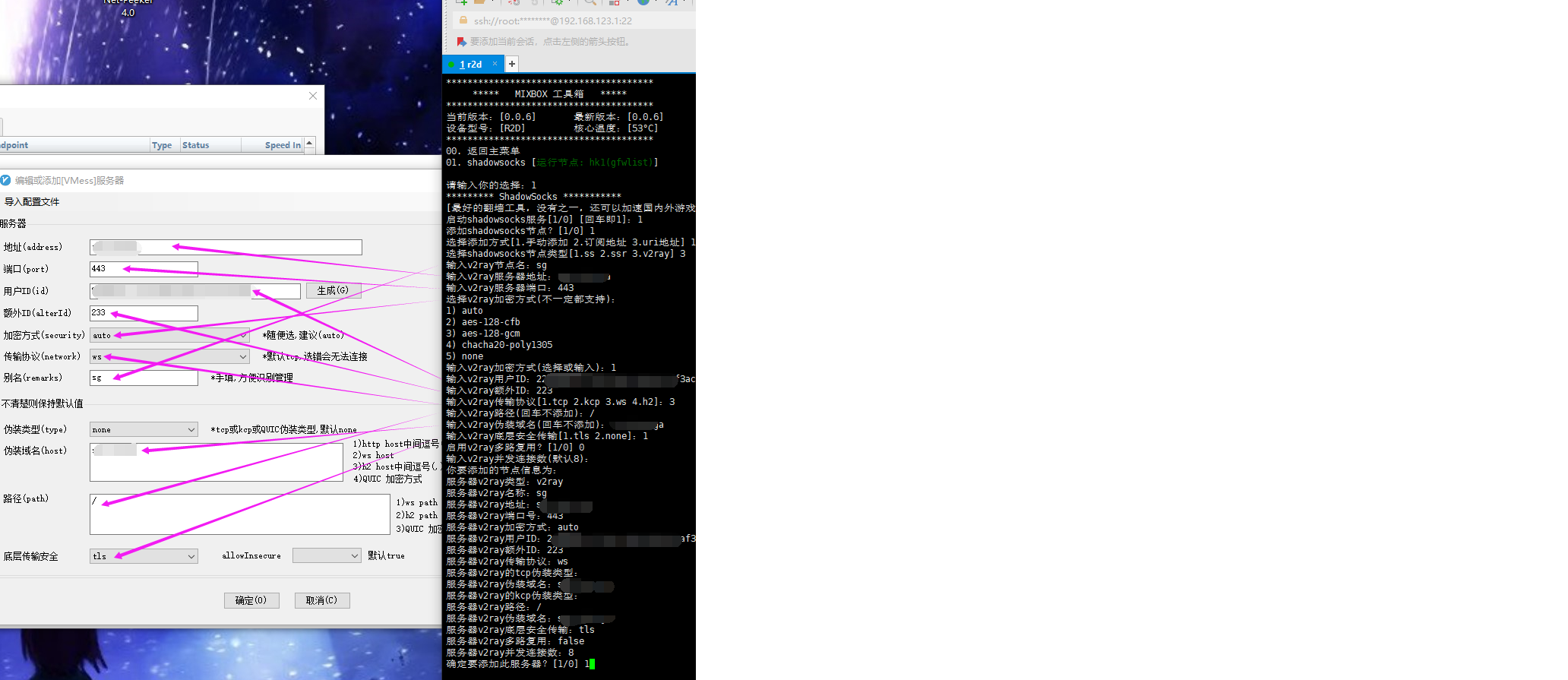
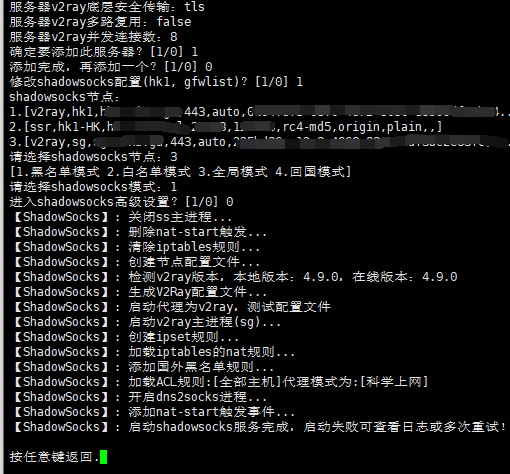
手动添加节点
mixbox-v2ray.png

照着电脑上的客户端粘贴进去
v2ray.png

模式只能使用黑名单
愉快的玩耍吧

说明:电信版r3g

升级为开发版

在小米路由器官网下载开发版固件,在系统升级中升级。

绑定路由器

手机上下载小米路由器app,路由器在没进行任何配置的情况下用app配置并绑定(设置过的恢复出厂在用app配置)。

开启ssh

方法和root密码:http://d.miwifi.com/rom/ssh

刷入不死breed

用WinSCP上传breed-mt7621-xiaomi-r3g.bin到/tmp下
下载地址:https://breed.hackpascal.net/
xshell执行命令
mtd -r write /tmp/breed.bin Bootloader

刷入固件

下载地址(搜索r3g):https://opt.cn2qq.com/padavan/
用牙签等尖锐物按下路由器 reset 按钮后重新接入电源。电脑上输入 192.168.1.1进入不死 Breed 的控制台。
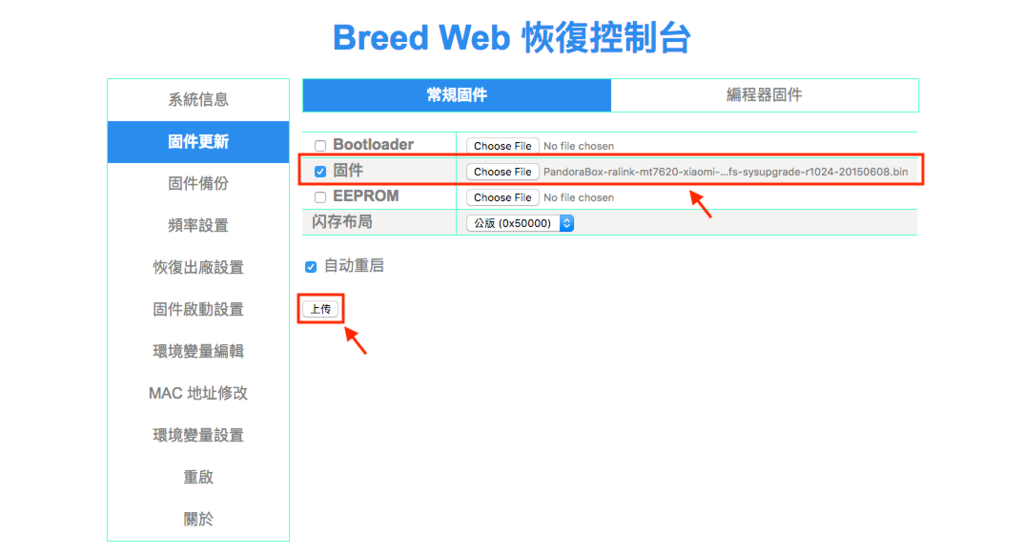
依次选择:固件更新 -> 常规固件 -> 勾选固件复选框 -> 浏览,选择上一步下载好的 Padavan 固件上传,刷入搞定

注意:刷入固件后重启死机不进入路由器系统的需要删除 normal_firmware_md5 参数再上传一次固件。
image

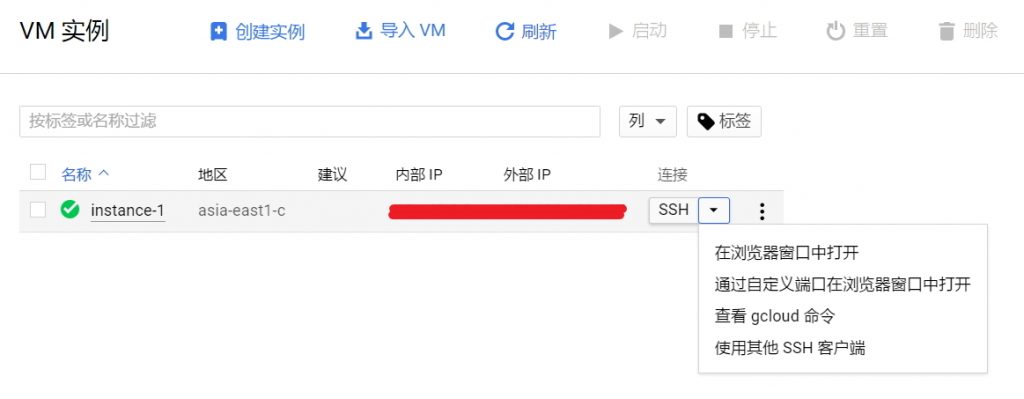
说明:Google Compute Engine创建的VM实例(以下简称GCE)默认ssh key登陆并禁用了root。开启会降低登陆安全性

开启步骤

1.在GCE VM实例列表中,选择“在浏览器窗口中打开”访问实例
登陆

2.切换到root账户
sudo su

3.修改SSH配置文件/etc/ssh/sshd_config
vi/etc/ssh/sshd_config

4.找到PermitRootLoginPasswordAuthentication大概在中下的位置,按i进入编辑模式

# Authentication:
LoginGraceTime 120
PermitRootLogin yes //默认为no,需要开启root用户访问改为yes
StrictModes yes 
# Change to no to disable tunnelled clear text passwords
PasswordAuthentication yes //默认为no,改为yes开启密码登陆

esc退出编辑模式,输入:wq回车保存

5.重启SSH服务

service sshd restart #centos
/etc/init.d/ssh restart #debian or Ubuntu

6.设置root账户密码
passwd root
输入两次密码确认

7.重复第5步操作重启ssh服务生效

r2d的当前版本2.25.201,发现mt工具箱打开失效了,显示:

No page is registered at '/web/misstar/index' .

If this url belongs to an extension, make sure it is properly installed.

If the extension was recently installed, try removing the /tmp/luci-indexcache file.

查找有现成的方法,就搬过来了
1、ssh方root用户登录路由器后台;
2、执行命令:
vi /usr/lib/lua/luci/controller/web/index2.lua
3、加入如下内容:

module("luci.controller.web.index2", package.seeall) 
function index()      
     local page   = node("web","misstar")          
     page.target  = firstchild()         
     page.title   = ("")          
     page.order   = 100          
     page.sysauth = "admin"          
     page.sysauth_authenticator = "jsonauth"          
     page.index = true          
     entry({"web", "misstar", "index"}, template("web/setting/misstar/index"), _("Tools"), 81)          
     entry({"web", "misstar", "add"}, template("web/setting/misstar/add"), _("Tools"), 82)          
     entry({"web", "misstar"}, alias("web","misstar","index"), _("Tools"), 80)          
     entry({"web", "misstar", "ss"}, template("web/setting/applications/ss/html/ss"), _("Tools"), 85)          
     entry({"web", "misstar","frp"}, template("web/setting/applications/frp/html/frp"), _("Tools"), 85)          
     entry({"web", "misstar","aliddns"}, template("web/setting/applications/aliddns/html/aliddns"), _("Tools"), 85)  
     entry({"web", "misstar","adm"}, template("web/setting/applications/adm/html/adm"), _("Tools"), 85)    
     entry({"web", "misstar","koolproxy"}, template("web/setting/applications/koolproxy/html/koolproxy"), _("Tools"), 85)
     entry({"web", "misstar","rm"}, template("web/setting/applications/rm/html/rm"), _("Tools"), 85)
     entry({"web", "misstar","aria2"}, template("web/setting/applications/aria2/html/aria2"), _("Tools"), 85) 
     entry({"web", "misstar","webshell"}, template("web/setting/applications/webshell/html/webshell"), _("Tools"), 85)
     entry({"web", "misstar","pptpd"}, template("web/setting/applications/pptpd/html/pptpd"), _("Tools"), 85)  
     entry({"web", "misstar","ftp"}, template("web/setting/applications/ftp/html/ftp"), _("Tools"), 85)
     entry({"web", "misstar","kms"}, template("web/setting/applications/kms/html/kms"), _("Tools"), 85)  
end

4、执行清理缓存命令:
rm -rf /tmp/luci-indexcache

参考:http://www.cmliu.net/?id=78

参考文章

小米路由器 mini 刷機
小米路由器mini 免USB打開SSH
小米路由器 mini 刷 Padavan 详细教程

准备工作

硬件:电脑,路由器
软件:winscp(Google drive),Xshell 5
固件相关:小米路由器mini穩定版2.8.14(Google drive),不死bread(Google drive),padavan固件(Google drive
度盘链接: https://pan.baidu.com/s/1eT9SxDg 密码: muj1

无U盘开启ssh

因为身边没有U盘可用,所以只能这样来开启ssh,有U盘的直接按照官方开启即可
1.正常使用的路由器刷入稳定版2.8.14,系统升级=>选择固件升级
2.登入 小米路由器mini控制台 後複制網址
http://192.168.31.1/cgi-bin/luci/;stok=521b849e00a11c5b6743aa275ba84ed8/web/home#router
3.將下面的網址/api前面的部份換成自己的,然後再貼到Browser上
http://192.168.31.1/cgi-bin/luci/;stok=521b849e00a11c5b6743aa275ba84ed8/api/xqsystem/set_name_password?oldPwd=路由器控制台管理密碼&newPwd=admin
等待10s左右,顺利的會得到 {"code":0}
4.將下面的網址/api前面的部份換成自己的,然後再貼到Browser上
http://192.168.31.1/cgi-bin/luci/;stok=521b849e00a11c5b6743aa275ba84ed8/api/xqnetwork/set_wifi_ap?ssid=tianbao&encryption=NONE&enctype=NONE&channel=1%3B%2Fusr%2Fsbin%2Ftelnetd
等待30s左右,順利的會得到 {"msg":"未能連接到指定WiFi(Probe timeout)","code":1616}
5.打开运行(win+r),输入telnet 192.168.31.1去連,帳號︰root,密碼︰admin,連上後依序輸入下面的command,每行一条命令

sed -i ":x;N;s/if \[.*\; then\n.*return 0\n.*fi/#tb/;b x" /etc/init.d/dropbear
/etc/init.d/dropbear start
nvram set ssh_en=1; nvram commit

备份

1.用putty(xshell也行)命令備份小米uboot,用 帳號:root 密碼:admin 登陆,执行命令:
dd if=/dev/mtd1 of=/tmp/xiaomi_uboot.bin這個是備份小米uboot,以後刷回miwifi需要)
取出備份需要用winscp.注意:用WinSCP連線時,檔案協定要選SCP,在tmp根目录下找到xiaomi_uboot.bin文件下载到电脑上备份。
2.查看 rom:cat /proc/mtd

root@XiaoQiang:~# cat /proc/mtd
dev:    size   erasesize  name
mtd0: 01000000 00010000 "ALL"
mtd1: 00030000 00010000 "Bootloader"
mtd2: 00010000 00010000 "Config"
mtd3: 00010000 00010000 "Factory"
mtd4: 00c80000 00010000 "OS1"
mtd5: 00b11e68 00010000 "rootfs"
mtd6: 00200000 00010000 "OS2"
mtd7: 00100000 00010000 "overlay"
mtd8: 00010000 00010000 "crash"
mtd9: 00010000 00010000 "reserved"
mtd10: 00010000 00010000 "Bdata"

备份rom:以下命令每行一条的来

cd /tmp
mkdir rom
dd if=/dev/mtd0 of=/tmp/rom/ALL.bin
dd if=/dev/mtd1 of=/tmp/rom/Bootloader.bin
dd if=/dev/mtd2 of=/tmp/rom/Config.bin
dd if=/dev/mtd3 of=/tmp/rom/Factory.bin
dd if=/dev/mtd4 of=/tmp/rom/OS1.bin
dd if=/dev/mtd5 of=/tmp/rom/rootfs.bin
dd if=/dev/mtd6 of=/tmp/rom/OS2.bin
dd if=/dev/mtd7 of=/tmp/rom/overlay.bin
dd if=/dev/mtd8 of=/tmp/rom/crash.bin
dd if=/dev/mtd9 of=/tmp/rom/reserved.bin
dd if=/dev/mtd10 of=/tmp/rom/Bdata.bin

用 WinSCP 登陆路由器后台(IP 为 192.168.31.1 ,用户名密码同上一步保存的),将备份到 /tmp/rom 中的这些 bin 文件拷贝到电脑作为备份

恢复命令 (以后备用)

mtd write /tmp/rom/Bootloader.bin Bootloader
mtd write /tmp/rom/Config.bin Config
mtd write /tmp/rom/Factory.bin Factory
mtd write /tmp/rom/OS1.bin OS1
mtd write /tmp/rom/rootfs.bin rootfs
mtd write /tmp/rom/OS2.bin OS2
mtd write /tmp/rom/overlay.bin overlay
mtd write /tmp/rom/crash.bin crash
mtd write /tmp/rom/reserved.bin reserved
mtd write /tmp/rom/Bdata.bin Bdata

刷入不死breed

把breed-mt7620-xiaomi-mini.bin用WinSCP传到/tmp目录,PuTTY连上路由器并切换目录至/tmp刷入:

cd /tmp
mtd -r write breed-mt7620-xiaomi-mini.bin Bootloader

刷入后,机器会重新启动,指示灯变蓝,这时需要确保电脑设置为自动获取 IP 地址,并且是用网线连上的路由器。
最后打开 CMD,运行 ping 192.168.1.1 -t(这时是 ping 不通的),按如下流程:
1,断开小米路由器的电源,用牙签等尖锐物按下路由器 reset 按钮后重新接入电源;
2,等到 mini 路由器的灯开始闪烁或 ping 通时即表明进入 Web 刷机模式,松开 reset 键。
这时在电脑上输入 192.168.1.1,就进入不死 Breed 的控制台了。

刷入固件

在 Breed Web 控制台依次选择:固件更新 -> 常规固件 -> 勾选固件复选框 -> 浏览,选择上一步下载好的 Padavan 固件上传,刷入搞定!
breed