标签 宝塔 下的文章

什么是frp

一个内网穿透的工具 没有公网IP又想访问里面服务的时候用得上 工具需要一台有公网IP的设备来中转
有公网IP的设备上安装frp服务端 frps
无公网IP的设备上安装frp客户端 frpc
宝塔是因为设备上已经安装了才说的 宝塔对于frp来说,非必要

安装服务端frps

在有公网IP的设备上安装frp服务端
fprs宝塔插件下载地址:http://pan.sixu.space/tools/btp_frps1.2.1.zip
在宝塔安装第三方工具 导入安装frps可视化面板
首次运行 frps版本在线安装 设置好端口 面板信息 启动

安装客户端frpc

在没有公网IP的设备上下载frp客户端 https://github.com/fatedier/frp/releases 注意下载的版本和frps的版本一致
frpc的配置

[common]
server_addr = 你的公网服务器IP
server_port = 你在服务端配置的端口
token = 你在服务端配置的身份验证码
[代理名称]
type = tcp
local_ip = 内网IP地址,本机填写 127.0.0.1
local_port = 内网端口
remote_port = 公网访问端口

临时跑起来

/bin/bash -c '/root/frp_0.44.0_linux_amd64/frpc -c /root/frp_0.44.0_linux_amd64/frpc.ini'

Supervisor

在宝塔的应用商店里面安装Supervisor 添加一个'frp2'的任务名称 只是举例
命令重启刚添加的任务:/www/server/panel/pyenv/bin/supervisorctl restart frp2:frp2_00

说明:
基于ServerStatus-Toyo修改的云探针
宝塔面板 nginx环境
脚本来自:https://www.aptx.xin/serverstatus-hotaru.html
Github:https://github.com/CokeMine/ServerStatus-Hotaru

更新

宝塔限制了/usr/local/ServerStatus/web目录不能作为网站目录 所以创建网站的时候直接使用默认目录 然后修改serverstatus里配置文件的目录即可:
1.修改/etc/init.d/status-server文件的web路径为探针网站的目录
2.将/usr/local/ServerStatus/web目录里面的全部内容复制到网站目录下

服务端

wget https://raw.githubusercontent.com/CokeMine/ServerStatus-Hotaru/master/status.sh && chmod +x status.sh
bash status.sh s #运行服务端
是否由脚本自动配置HTTP服务(服务端的在线监控网站)[Y/n] #选n 使用nginx 记下路径 /usr/local/ServerStatus/web

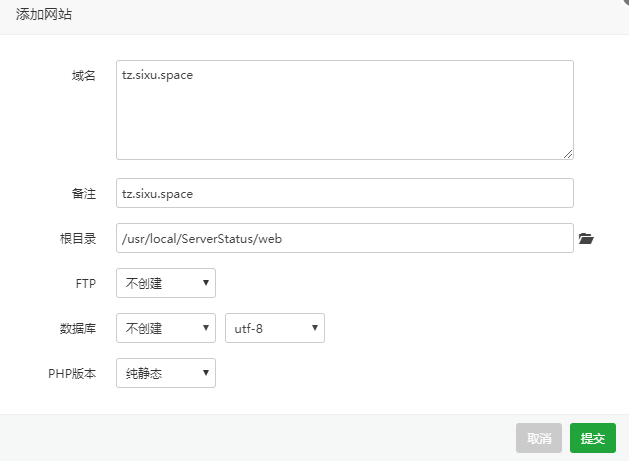
宝塔新建站点

注意修改网站目录
宝塔 根目录.png

客户端

wget https://raw.githubusercontent.com/CokeMine/ServerStatus-Hotaru/master/status.sh && chmod +x status.sh
bash status.sh c #运行客户端

换源

vi /etc/apt/sources.list

deb https://mirrors.ustc.edu.cn/debian stretch main contrib non-free
deb https://mirrors.ustc.edu.cn/debian stretch-updates main contrib non-free
deb https://mirrors.ustc.edu.cn/debian stretch-backports main contrib non-free
deb https://mirrors.ustc.edu.cn/debian-security/ stretch/updates main contrib non-free

apt-get update && apt-get upgrade

安装宝塔

https://www.feiji.work/2019/20.html
wget https://www.feiji.work/n1/bt/6.9.4/install.sh && sudo bash install.sh
安装完成可能有错误提示 直接reboot重启
查看面板入口:/etc/init.d/bt default

安装nginx

https://www.feiji.work/2019/41.html

打开ssh(注:如果以下步骤提示缺少文件,可以在宝塔后台执行一次安装Nginx,在下载完脚本后直接取消安装即可。)

cd /www/server/panel/install #如果目录存在nginx 先rm
wget https://www.feiji.work/n1/bt/nginx.sh 下载nginx.sh
sh nginx.sh install #直接安装

安装Nginx出现checking for GD library ... not found错误
https://de.lib.im/linux-gd.html
apt-get -y install libgd2-xpm-dev build-essential重新安装

报错Starting nginx... nginx: [emerg] getpwnam("www") failed in /www/server/nginx/conf/nginx.conf:1
https://blog.csdn.net/rebel_yangke/article/details/58601731
修改/www/server/nginx/conf/nginx.conf 两个www改成root 再重启

pppoe宽带拨号

https://xaolong.com/post/279.html
https://malagege.github.io/blog/2019/01/26/Linux%E4%BD%BF%E7%94%A8pppoe%E9%80%A3%E7%B7%9A%E6%96%B9%E6%B3%95%E5%B0%8F%E8%A8%98/

apt install pppoeconf -y
apt install isc-dhcp-server -y

vi /etc/default/isc-dhcp-server
#将INTERFACESv4=""修改为INTERFACESv4="br0"
#在INTERFACESv6=""的前面加个#,修改为#INTERFACESv6=""

mv /etc/dhcp/dhcpd.conf /etc/dhcp/dhcpd.conf.bak

vi /etc/dhcp/dhcpd.conf  ###里面的所有内容
###
option domain-name "phicomm-n1";
option domain-name-servers 119.29.29.29;
subnet 192.168.1.0 netmask 255.255.255.0 {
    range 192.168.1.101 192.168.1.254;
    option subnet-mask 255.255.255.0;
    option broadcast-address 192.168.1.255;
    option routers 192.168.1.2;
    option domain-name-servers 119.29.29.29;
}
default-lease-time 600;
max-lease-time 7200;
authoritative;
###

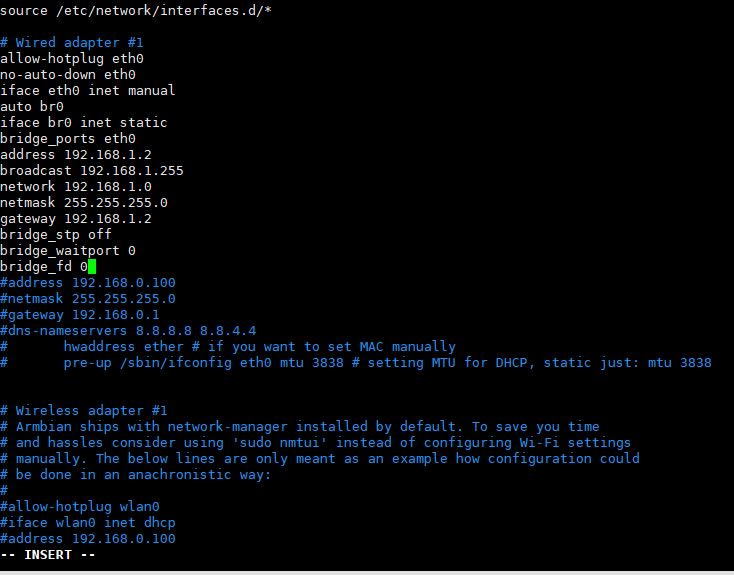
vi /etc/network/interfaces
#iface eth0 inet dhcp 改为iface eth0 inet manual 后面增加以下内容 ###里面的全部 见图一
###
auto br0
iface br0 inet static
bridge_ports eth0
address 192.168.1.2
broadcast 192.168.1.255
network 192.168.1.0
netmask 255.255.255.0
gateway 192.168.1.2
bridge_stp off              
bridge_waitport 0           
bridge_fd 0
###

vi /etc/sysctl.conf
#去掉net.ipv4.ip_forward=1前面的#号

sysctl -p

vi  /etc/rc.local
#在 exit 0 前一行加以下内容
iptables -t nat -A POSTROUTING -j MASQUERADE

reboot

批注 2019-12-29 185147.png

n1接光猫 #n1已经固定IP 192.168.1.2

pppoeconf #进入拨号向导
#第一个选no
#删除username 输入宽带账号
#输入宽带密码
#之后全部 yes

poff -a # 關閉全部pppoe

查看状态
plog
ip addr show ppp0

开机自动拨号
vi /etc/rc.local #在 exit 0 前一行加一句:
pon dsl-provider

账号密码配置文件地址/etc/ppp/pap-secrets

动态域名解析dns

https://github.com/NewFuture/DDNS

git clone https://github.com/NewFuture/DDNS
cd DDNS
./run.py #运行一次 生成config.json配置文件
vi config.json #修改 id 域名 token
./task.sh

说明:买了个nat小鸡 装了宝塔面板 默认的8888改了端口才能用
Debian9系统

修改端口

echo '分配的端口' > /www/server/panel/data/port.pl && /etc/init.d/bt restart

防火墙放行端口

ufw allow 上面使用的端口/tcp

说明:以前一直宝塔习惯了,体验了一下纯ipv6的小鸡,宝塔不支持,试了好几个方法,都没成功。在下愚钝,手动搭建环境也没成功。然后尝试了oneinstack,失败。最后使用lnmp一键安装包成功了。

安装

1.screen -S lnmp 如果网络断线,重新连接SSH,再执行screen -r lnmp就会看到你的lnmp安装进程
2.wget http://soft.vpser.net/lnmp/lnmp1.6.tar.gz -cO lnmp1.6.tar.gz && tar zxf lnmp1.6.tar.gz && cd lnmp1.6 && ./install.sh lnmp 跟着提示一步一步执行即可
详见:https://lnmp.org/install.html

添加网站

1.lnmp vhost add 跟着提示一步步执行
相见:https://lnmp.org/faq/lnmp-vhost-add-howto.html

重载nginx

修改了配置文件后需要用到
路径vi /usr/local/nginx/conf/vhost/域名.conf
/usr/local/nginx/sbin/nginx -s reload

说明:和套cf一样,只不过这次套的是腾讯云cdn,每个月有免费的10g,新用户注册送50g连送6个月。由于要套腾讯云cdn,所以域名要求是备案过的。
联通适用

宝塔面板添加网站

1.输入自己的网址,ftp、数据库、php都不用
2.申请ssl
点击「设置」——SSL——Let’s Encrypt,成功申请SSL后,保存
3.更改 配置文件
再次点击站点「设置」的「配置文件」选项,在最后一个}前添加如下代码:

    location / {
    proxy_redirect off;
    proxy_pass http://127.0.0.1:25534;#25534是v2ray的端口号,注意和之后安装的一致
    proxy_http_version 1.1;
    proxy_set_header Upgrade $http_upgrade;
    proxy_set_header Connection "upgrade";
    proxy_set_header Host $http_host;
    }

4.面板首页重启Nignx

安装v2ray

1.安装命令
bash <(curl -L -s https://install.direct/go.sh)
2.修改v2ray配置文件,路径/etc/v2ray/config.json,修改后记得重启v2ray
参考配置:

{
    "log": {
        "access": "/var/log/v2ray/access.log",
        "error": "/var/log/v2ray/error.log",
        "loglevel": "warning"
    },
    "inbound": {
        "port": 25534,#自己的端口号需要对应
        "protocol": "vmess",
        "settings": {
            "udp": true,
            "clients": [
                {
                    "id": "e5cee2d4-d28b-4b8a-83ef-cf788bf1****",#自己的id
                    "level": 1,
                    "alterId": 233
                }
            ]
        },
        "streamSettings": {
            "network": "ws"
        }
    },
    "outbound": {
        "protocol": "freedom",
        "settings": {}
    },
    "outboundDetour": [
        {
            "protocol": "blackhole",
            "settings": {},
            "tag": "blocked"
        }
    ],
    "routing": {
        "strategy": "rules",
        "settings": {
            "rules": [
                {
                    "type": "field",
                    "ip": [
                        "0.0.0.0/8",
                        "10.0.0.0/8",
                        "100.64.0.0/10",
                        "127.0.0.0/8",
                        "169.254.0.0/16",
                        "172.16.0.0/12",
                        "192.0.0.0/24",
                        "192.0.2.0/24",
                        "192.168.0.0/16",
                        "198.18.0.0/15",
                        "198.51.100.0/24",
                        "203.0.113.0/24",
                        "::1/128",
                        "fc00::/7",
                        "fe80::/10"
                    ],
                    "outboundTag": "blocked"
                }
            ]
        }
    }
}

3.重启V2Ray
service v2ray restart

腾讯云cdn设置

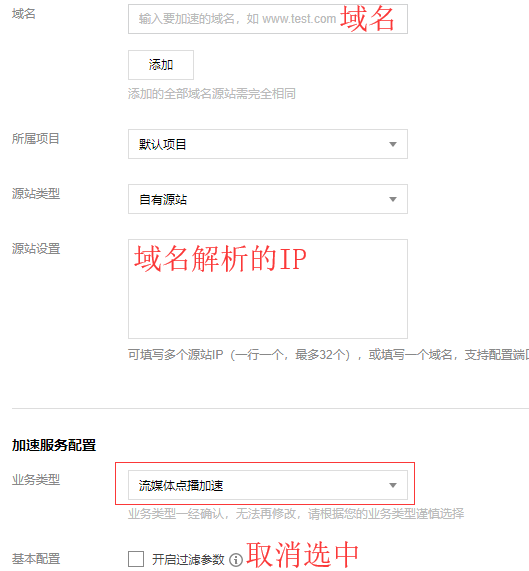
1.添加域名 https://console.cloud.tencent.com/cdn/access
2.源站填写IP,需要注意的是:加速类型选择流媒体点播加速
TIM截图20190611205030.png
3.https配置
高级配置,添加Https。
ssl证书直接从之前的宝塔面板复制过来,腾讯云的‘证书内容’对应宝塔的‘证书(PEM格式)’注意复制过来之后中间有一行空格需要手动删除;腾讯云的‘私钥内容’对应宝塔的‘密钥(KEY)’
回源记得选择协议跟随
4.访问控制-把过滤参数关闭
缓存配置-全部改成0
回源设置-关闭Range回源

域名解析

在自己的域名解析服务商添加‘CNAME’记录
TIM截图20190611210821.png

使用

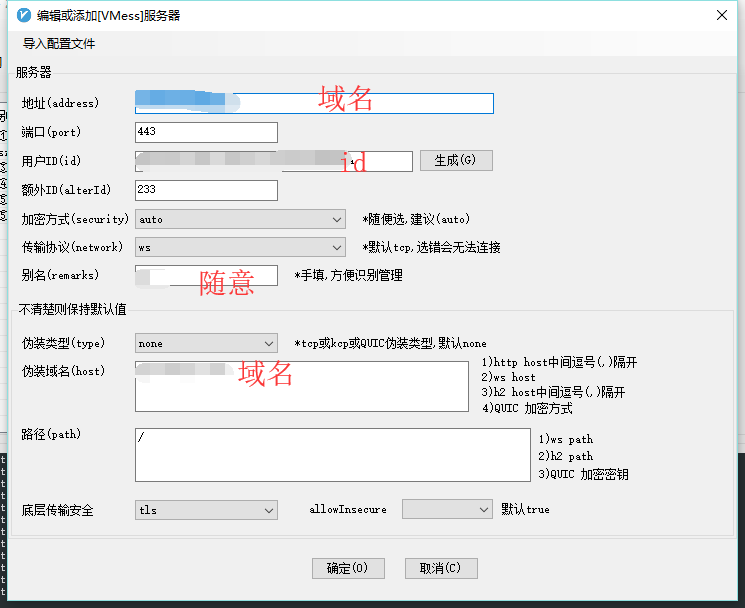
开全局模式
TIM截图20190611211221.png

参考:
https://sumrday.net/exp/lt-xyml.html
https://jdbblog.top/84.html

说明:Debian8宝塔面板安装运行环境php失败,编译安装和极速安装都失败了。

错误日志

checking for cURL in default path... not found
configure: error: Please reinstall the libcurl distribution -
easy.h should be in <curl-dir>/include/curl/
make: *** No targets specified and no makefile found.  Stop.
make: *** No rule to make target 'install'.  Stop.

解决办法

apt-get install curl
apt-get install libcurl4-gnutls-dev

参考:https://www.linuxidc.com/Linux/2018-01/150565.htm

前言:
v2ray通过cloudflare拯救被封的IP,之前一直用的233blog的一键脚本,奈何nfp的ovz换了4次系统都没能成功实现,所以手动搭建了,顺便开个记录贴

域名解析

1.使用cloudflare解析域名,为了方便测试,可以先把云朵点灰、关闭cdn(非必要,如果点灰了最后记得再次点亮云朵图标开启cdn)

安装宝塔面板

1.根据自己的系统使用正确的命令安装:

Centos安装命令
yum install -y wget && wget -O install.sh http://download.bt.cn/install/install.sh && sh install.sh

Debian安装命令
wget -O install.sh http://download.bt.cn/install/install-ubuntu.sh && bash install.sh

2.安装完成后,登录BT面板,安装nginx
3.添加站点
输入自己的网址,ftp、数据库、php都不用
4.申请ssl
点击「设置」——SSL——Let’s Encrypt,成功申请SSL后,保存
5.更改 配置文件
再次点击站点「设置」的「配置文件」选项,在最后一个}前添加如下代码:

    location / {
    proxy_redirect off;
    proxy_pass http://127.0.0.1:25534;#25534是v2ray的端口号,注意和之后安装的一致
    proxy_http_version 1.1;
    proxy_set_header Upgrade $http_upgrade;
    proxy_set_header Connection "upgrade";
    proxy_set_header Host $http_host;
    }

6.重启Nignx

安装v2ray

1.安装命令
bash <(curl -L -s https://install.direct/go.sh)
2.修改v2ray配置文件,路径/etc/v2ray/config.json,修改后记得重启v2ray
参考配置:

{
    "log": {
        "access": "/var/log/v2ray/access.log",
        "error": "/var/log/v2ray/error.log",
        "loglevel": "warning"
    },
    "inbound": {
        "port": 25534,#自己的端口号需要对应
        "protocol": "vmess",
        "settings": {
            "udp": true,
            "clients": [
                {
                    "id": "e5cee2d4-d28b-4b8a-83ef-cf788bf1****",#自己的id
                    "level": 1,
                    "alterId": 233
                }
            ]
        },
        "streamSettings": {
            "network": "ws"
        }
    },
    "outbound": {
        "protocol": "freedom",
        "settings": {}
    },
    "outboundDetour": [
        {
            "protocol": "blackhole",
            "settings": {},
            "tag": "blocked"
        }
    ],
    "routing": {
        "strategy": "rules",
        "settings": {
            "rules": [
                {
                    "type": "field",
                    "ip": [
                        "0.0.0.0/8",
                        "10.0.0.0/8",
                        "100.64.0.0/10",
                        "127.0.0.0/8",
                        "169.254.0.0/16",
                        "172.16.0.0/12",
                        "192.0.0.0/24",
                        "192.0.2.0/24",
                        "192.168.0.0/16",
                        "198.18.0.0/15",
                        "198.51.100.0/24",
                        "203.0.113.0/24",
                        "::1/128",
                        "fc00::/7",
                        "fe80::/10"
                    ],
                    "outboundTag": "blocked"
                }
            ]
        }
    }
}

3.V2Ray可使用的命令:

sudo service v2ray start #启动V2Ray
sudo service v2ray stop #停止运行V2Ray
sudo service v2ray restart #重启V2Ray
sudo service v2ray status #查看V2Ray状态