标签 工具箱 下的文章

说明:
使用环境
小米路由器r2d
工具箱mixbox ssh安装地址:sh -c "$(curl -kfsSl https://dev.tencent.com/u/monlor/p/MIXBOX/git/raw/master/install.sh)" && source /etc/profile &> /dev/null

v2ray设置

不支持订阅
不支持导入
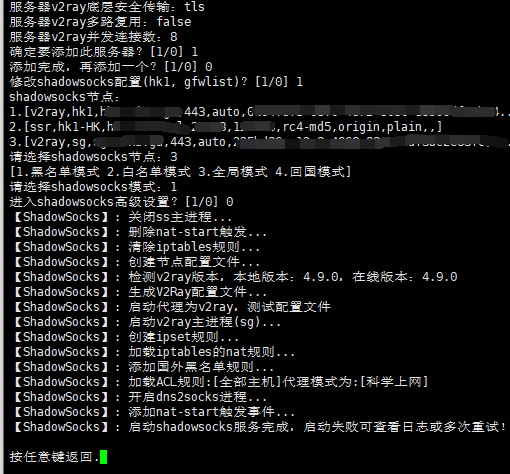
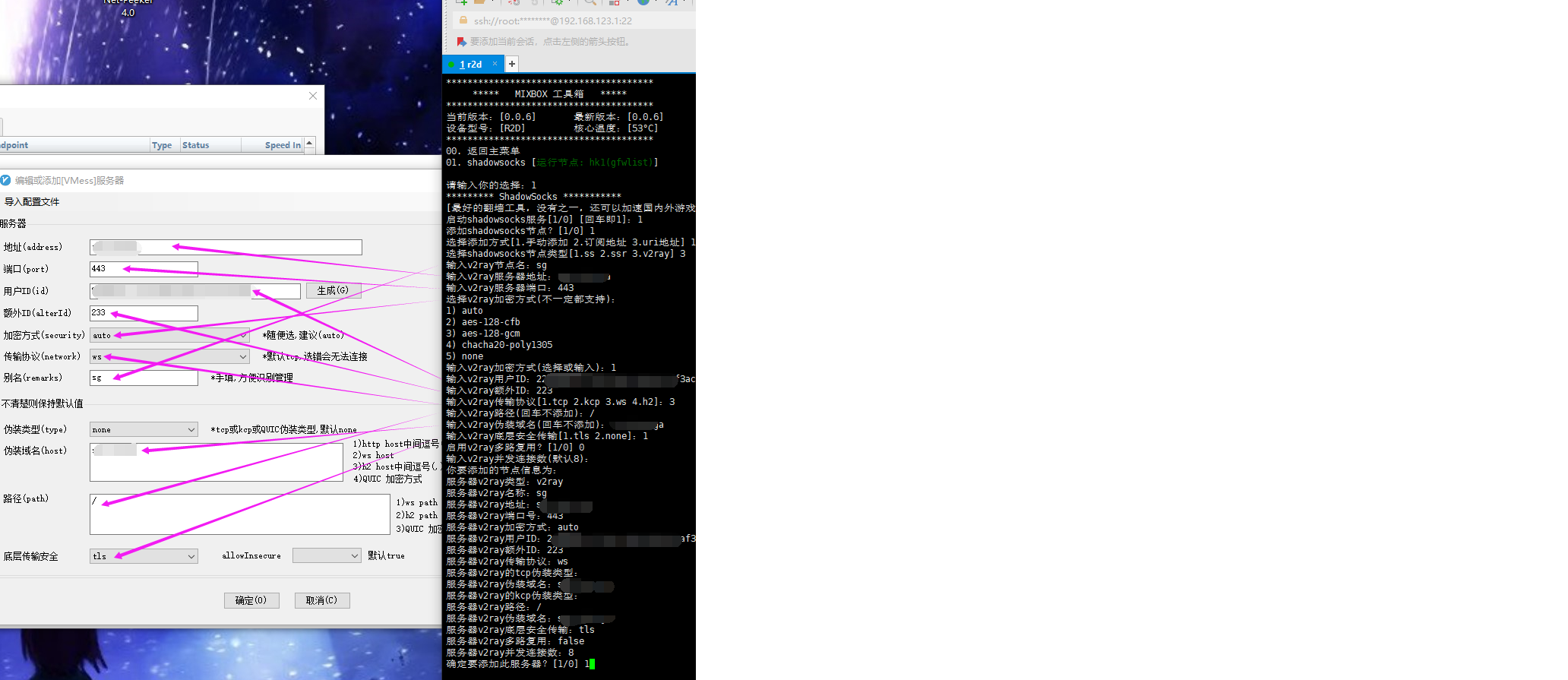
手动添加节点
mixbox-v2ray.png

照着电脑上的客户端粘贴进去
v2ray.png

模式只能使用黑名单
愉快的玩耍吧

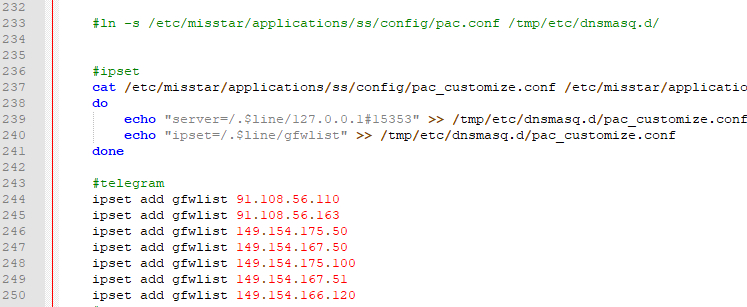
1.小米路由器r2d中 使用 mt工具箱3.0 的gfwlist模式,telegram不能直接连接。

2.当前通过netpeeker软件看到的IP如下:

ipset add gfwlist 91.108.56.110
ipset add gfwlist 91.108.56.163
ipset add gfwlist 149.154.175.50
ipset add gfwlist 149.154.167.50
ipset add gfwlist 149.154.175.100
ipset add gfwlist 149.154.167.51
ipset add gfwlist 149.154.166.120

3.修改工具箱中ss脚本
vi /etc/misstar/applications/ss/script/ss
添加到start函数末尾

start()
{
#此处为添加的内容
/etc/init.d/dnsmasq restart
}

4.给权限
chmod +x /etc/misstar/applications/ss/script/ss

image

参考:
https://laoyur.com/archives/267
https://gist.github.com/lanceliao/3099caed8750911dfe58

2019年6月28日更新
尝试了一下新的mtg
Github:https://github.com/cutelua/mtg-dist
Github:https://github.com/9seconds/mtg

安装
bash <(wget -qO- https://git.io/mtg.sh)

卸载

systemctl stop mtg && systemctl disable mtg
rm -f /usr/local/bin/mtg /lib/systemd/system/mtg.service /etc/mtg.conf

参考:https://sunpma.com/151.html

--------------分割线-------------

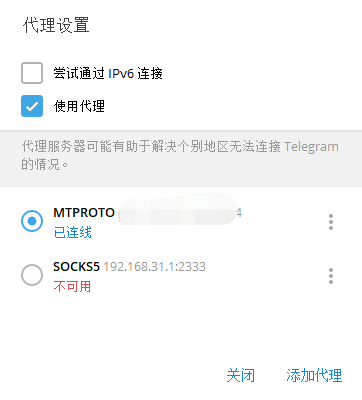
mt工具箱里的科学上网不智能,gfwlist模式很多网站都无效,暂时没找到解决办法。最近开始用的telegram也不能愉快的聊天,有现成工具就搭了个mtproto

逗逼一键脚本

#CentOS 7 / Debian 7+ / Ubuntu 14.04 + 
wget -N --no-check-certificate https://raw.githubusercontent.com/ToyoDAdoubi/doubi/master/mtproxy.sh && chmod +x mtproxy.sh && bash mtproxy.sh

阿里云centos7亲测失败,顺便贴个错误日志,Debian8成功安装

[信息] 开始安装/配置 依赖...
Loaded plugins: fastestmirror
Loading mirror speeds from cached hostfile
No packages marked for update
Loaded plugins: fastestmirror
Loading mirror speeds from cached hostfile
Package 1:openssl-devel-1.0.2k-12.el7.x86_64 already installed and latest version
Package zlib-devel-1.2.7-17.el7.x86_64 already installed and latest version
Package git-1.8.3.1-14.el7_5.x86_64 already installed and latest version
Package net-tools-2.0-0.22.20131004git.el7.x86_64 already installed and latest version
Nothing to do
Loaded plugins: fastestmirror
Loading mirror speeds from cached hostfile
Maybe run: yum groups mark install (see man yum)
No packages in any requested group available to install or update
cp: ‘/usr/share/zoneinfo/Asia/Shanghai’ and ‘/etc/localtime’ are the same file
[信息] 开始下载/安装...
Cloning into 'MTProxy'...
remote: Enumerating objects: 183, done.
remote: Total 183 (delta 0), reused 0 (delta 0), pack-reused 183
Receiving objects: 100% (183/183), 293.80 KiB | 281.00 KiB/s, done.
Resolving deltas: 100% (74/74), done.
cc  -O3 -std=gnu11 -Wall -mpclmul -march=core2 -mfpmath=sse -mssse3 -fno-strict-aliasing -fno-strict-overflow -fwrapv -DAES=1 -DCOMMIT=\"f9158e3129efd4ccdc291aefb840209791226a77\" -D_GNU_SOURCE=1 -D_FILE_OFFSET_BITS=64 -iquote common -iquote . -c -MP -MD -MF dep/mtproto/mtproto-proxy.d -MQ objs/mtproto/mtproto-proxy.o -o objs/mtproto/mtproto-proxy.o mtproto/mtproto-proxy.c
make: cc: Command not found
make: *** [objs/mtproto/mtproto-proxy.o] Error 127
[错误] MTProxy 编译失败!
另外,如果在上面几行看到 xxxxx option "-std=gnu11" 字样,说明是系统版本过低,请尝试更换系统重试!
rm -rf objs dep objs/bin || true

image

参考:https://doub.io/shell-jc7/

菜鸟一枚,根据自己操作写的记录贴,有不当的地方请指出

下载v2ray

下载地址:https://github.com/v2ray/v2ray-core/releases/
r2d选择arm:https://github.com/v2ray/v2ray-core/releases/download/v3.43/v2ray-linux-arm.zip

上传至路由器

目录:根据自己实际情况,之前又mt工具箱,所以直接放里面了
/data/etc/misstar/applications/v2ray
1.解压上传客户端文件

2.上传客户端配置文件
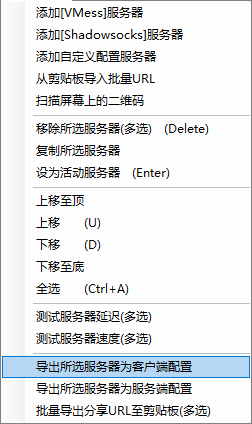
2.1导出客户端配置并上传至路由器
image

2.2修改配置文件,参考下面代码

{
  "log": {
    "access": "",
    "error": "error.log", 
    "loglevel": "warning"
  },
  "inbound": {
    "port": 2333,
    "listen": "0.0.0.0",
    "protocol": "socks",
    "domainOverride": [
      "tls",
      "http"
    ],
    "settings": {
      "auth": "noauth",
      "udp": true,
      "ip": "127.0.0.1",
      "clients": null
    },
    "streamSettings": null
  },
  "outbound": {
    "tag": "agentout",
    "protocol": "vmess",
    "settings": {
      "vnext": [
        {
          "address": "us2.sangyu.tw",
          "port": 443,
          "users": [
            {
              "id": "xxxxxxxxxxxxxxxxxxx",
              "alterId": 233,
              "email": "t@t.tt",
              "security": "aes-128-gcm"
            }
          ]
        }
      ],
      "servers": null
    },
    "streamSettings": {
      "network": "ws",
      "security": "tls",
      "tlsSettings": {
        "allowInsecure": true,
        "serverName": null
      },
      "tcpSettings": null,
      "kcpSettings": null,
      "wsSettings": {
        "connectionReuse": true,
        "path": "/",
        "headers": {
          "Host": "us2.sangyu.tw"
        }
      },
      "httpSettings": null
    },
    "mux": {
      "enabled": true
    }
  },
    "inboundDetour":[
        {
           "protocol":"dokodemo-door",
           "port":1099, 
           "settings":{
              "address":"",
              "network":"tcp",
              "timeout":0,
              "followRedirect":true
           }
        }
     ],
  "outboundDetour": [
    {
      "protocol": "freedom",
      "settings": {
        "response": null
      },
      "tag": "direct"
    },
    {
      "protocol": "blackhole",
      "settings": {
        "response": {
          "type": "http"
        }
      },
      "tag": "blockout"
    }
  ],
  "dns": {
    "servers": [
      "8.8.8.8",
      "8.8.4.4",
      "localhost"
    ]
  },
  "routing": {
    "strategy": "rules",
    "settings": {
      "domainStrategy": "IPIfNonMatch",
      "rules": [
        {
          "type": "field",
          "port": null,
          "outboundTag": "direct",
          "ip": null,
          "domain": [
            "geosite:cn"
          ]
        },
        {
          "type": "field",
          "port": null,
          "outboundTag": "direct",
          "ip": [
            "geoip:cn"
          ],
          "domain": null
        },
        {
          "type": "field",
          "port": null,
          "outboundTag": "direct",
          "ip": [
            "0.0.0.0/8",
            "10.0.0.0/8",
            "100.64.0.0/10",
            "127.0.0.0/8",
            "169.254.0.0/16",
            "172.16.0.0/12",
            "192.0.0.0/24",
            "192.0.2.0/24",
            "192.168.0.0/16",
            "198.18.0.0/15",
            "198.51.100.0/24",
            "203.0.113.0/24",
            "::1/128",
            "fc00::/7",
            "fe80::/10"
          ],
          "domain": null
        }
      ]
    }
  }
}

运行软件

1.切换到目录下:/data/etc/misstar/applications/v2ray
2.赋予权限:

chmod +x /data/etc/misstar/applications/v2ray/v2ray
chmod +x /data/etc/misstar/applications/v2ray/v2ctl

3../v2ray --config=/data/etc/misstar/applications/v2ray/config.json
后台运行nohup /data/etc/misstar/applications/v2ray/v2ray --config=/data/etc/misstar/applications/v2ray/config.json &

参考:
https://ralf.ren/717
https://cloverkit.coding.me/2018/08/07/配置-V2Ray-和路由器透明代理
不能从老版本平滑升级,请卸载老版本工具箱后使用新版安装命令进行安装,卸载前请注意备份配置文件

卸载2.0旧版工具箱

按需使用,没安装或者在后台管理界面卸载过的无需此步骤
wget http://www.misstar.com/tools/uninstall.sh -O /tmp/uninstall.sh && chmod +x /tmp/uninstall.sh && /tmp/uninstall.sh

安装3.0工具箱

curl -s -k https://beta.misstar.com/download/$(uname -m)/mtinstall -o /tmp/mtinstall && chmod +x /tmp/mtinstall && /tmp/mtinstall

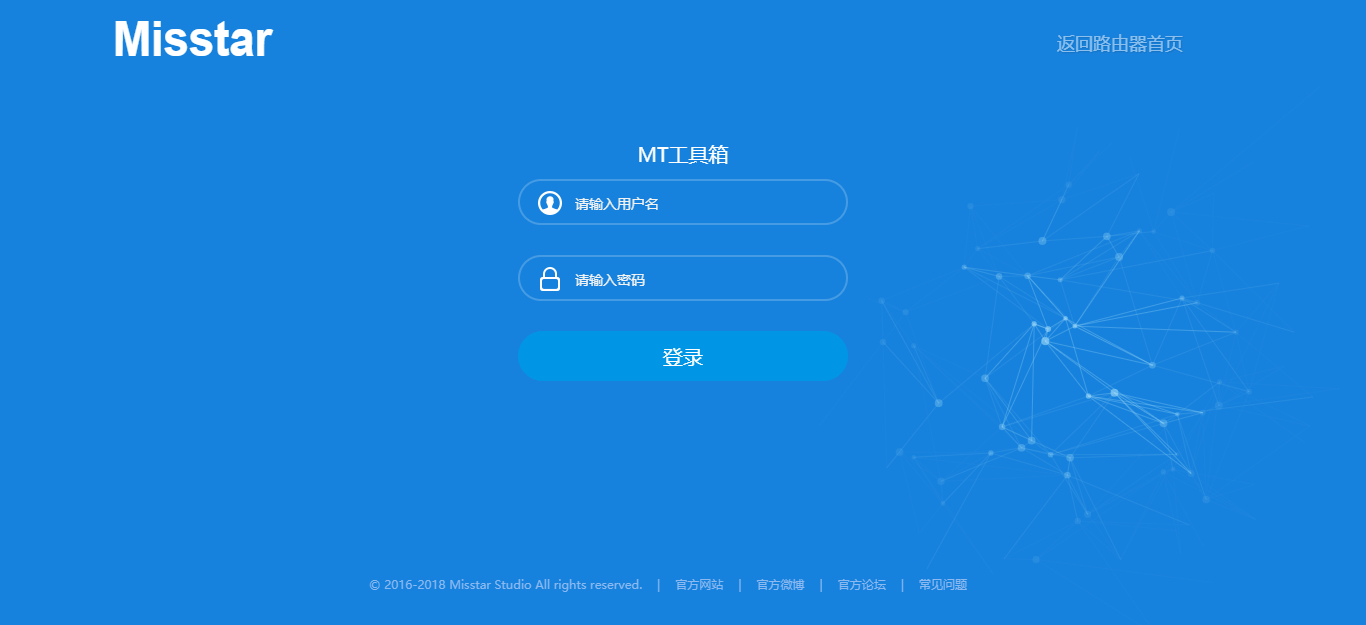
安装成功后工具箱的界面:
https://mt.misstar.com/
http://192.168.31.1:1314
http://192.168.31.1:1024 无需账号密码

image

基本介绍

路由器:r2d
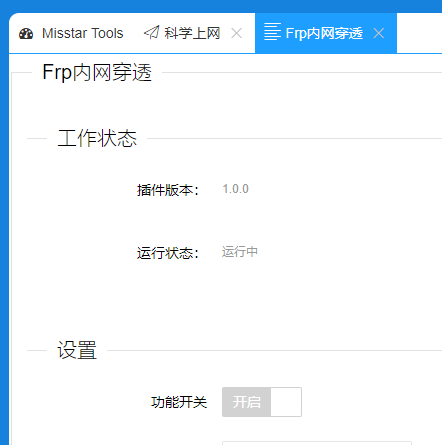
工具箱:Misstar Tools 版本:3.18.09.10
插件:frp
故障描述:frp无法正常启动,本人菜鸟,无法获取更多的错误信息,工具箱群里问了下没人回,还好搜索有解决办法,就搬过来了。

更新路由器中的frp

1.下载最新版frp:https://github.com/fatedier/frp/releases
当前的最新版下载地址:https://github.com/fatedier/frp/releases/download/v0.21.0/frp_0.21.0_linux_arm.tar.gz

2.解压下载的文件,替换/data/etc/misstar/applications/frp/bin中的frpc

3.更改frp配置信息
vi /data/etc/misstar/applications/frp/script/frp #编辑配置文件
修改第32行echo "privilege_token = "$privilege_token >> /etc/misstar/applications/frp/config/frpc.confecho "token = "$privilege_token >> /etc/misstar/applications/frp/config/frpc.conf
在下一行增加两行frpc运行时生成日志,方便出问题时的排查:

    echo >> /etc/misstar/applications/frp/config/frpc.conf
    echo "log_file = /etc/misstar/applications/frp/bin/frpc.log" >> /etc/misstar/applications/frp/config/frpc.conf

文件最后加上restart 的脚本

restart(){
        stop; sleep 2; start
}

赋予执行权限:chmod +x /data/etc/misstar/applications/frp/script/frp
[工具箱配置完成后]试一下看能不能启动 frpc:./frp start

更新服务端frp

./install-frps.sh update
我当时路由器用最新版 而vps用0.16.0的时候就会出现这样的错误login to server failed: EOF

image

参考:http://bbs.xiaomi.cn/t-32690007