标签 root 下的文章

开启telnet

1.把光猫背后的光纤线拔掉,不然无法 telnet 进路由器
访问 http://192.168.1.1/hidden_version_switch.gch
在页面里 Version type 旁边的下拉框选择 Default version 点 submit ,这时光猫会重启
然后同样的操作再一次切换版本,这次切换到你所在的省份的版本,四川就选 SiChuan Version 以此类推
光猫重启好以后打开命令行客户端进行TELNET连接
用户名 root, 密码 Zte521(四川 Zte521@SC)

2.

sendcmd 1 DB set TelnetCfg 0 Lan_EnableAfterOlt 1 # 设置插上光纤后不自动关闭telnet)(这条一定要修改)
sendcmd 1 DB save # 保存设置
reboot # 重启光猫

关闭光猫注册界面

sendcmd 1 DB set PDTCTUSERINFO 0 tForcePushFlg 0
sendcmd 1 DB set PDTCTUSERINFO 0 Result 1
sendcmd 1 DB set CltLmt 8 Enable 0
sendcmd 1 DB set DevAuthInfo 0 Enable 1
sendcmd 1 DB save
reboot # 重启光猫生效

参考:

  1. https://gist.github.com/Malayke/d9636339af97132d1c0d5bcfbea2ec14
  2. https://www.right.com.cn/forum/forum.php?mod=redirect&goto=findpost&ptid=8251129&pid=17403160

什么是frp

一个内网穿透的工具 没有公网IP又想访问里面服务的时候用得上 工具需要一台有公网IP的设备来中转
有公网IP的设备上安装frp服务端 frps
无公网IP的设备上安装frp客户端 frpc
宝塔是因为设备上已经安装了才说的 宝塔对于frp来说,非必要

安装服务端frps

在有公网IP的设备上安装frp服务端
fprs宝塔插件下载地址:http://pan.sixu.space/tools/btp_frps1.2.1.zip
在宝塔安装第三方工具 导入安装frps可视化面板
首次运行 frps版本在线安装 设置好端口 面板信息 启动

安装客户端frpc

在没有公网IP的设备上下载frp客户端 https://github.com/fatedier/frp/releases 注意下载的版本和frps的版本一致
frpc的配置

[common]
server_addr = 你的公网服务器IP
server_port = 你在服务端配置的端口
token = 你在服务端配置的身份验证码
[代理名称]
type = tcp
local_ip = 内网IP地址,本机填写 127.0.0.1
local_port = 内网端口
remote_port = 公网访问端口

临时跑起来

/bin/bash -c '/root/frp_0.44.0_linux_amd64/frpc -c /root/frp_0.44.0_linux_amd64/frpc.ini'

Supervisor

在宝塔的应用商店里面安装Supervisor 添加一个'frp2'的任务名称 只是举例
命令重启刚添加的任务:/www/server/panel/pyenv/bin/supervisorctl restart frp2:frp2_00

1.查看分割区的编号
parted里面执行print

(parted) print                                                            
Model: QEMU QEMU HARDDISK (scsi)
Disk /dev/sda: 10.7GB
Sector size (logical/physical): 512B/512B
Partition Table: msdos
Disk Flags: 

Number  Start   End     Size    Type      File system     Flags
 1      1049kB  4295MB  4294MB  primary   ext4            boot
 2      4296MB  9999MB  5703MB  extended
 5      4296MB  5368MB  1072MB  logical   linux-swap(v1)

2.删除多余的分割区

(parted) rm 2                                                             
Warning: Partition /dev/sda2 is being used. Are you sure you want to continue?
Yes/No? yes                                                               
Error: Partition(s) 5 on /dev/sda have been written, but we have been unable to inform the kernel of the change, probably because it/they are in use.  As a result,
the old partition(s) will remain in use.  You should reboot now before making further changes.
Ignore/Cancel? Ignore                                                     
#再次查看分割区
(parted) print                                                            
Model: QEMU QEMU HARDDISK (scsi)
Disk /dev/sda: 10.7GB
Sector size (logical/physical): 512B/512B
Partition Table: msdos
Disk Flags: 

Number  Start   End     Size    Type     File system  Flags
 1      1049kB  4295MB  4294MB  primary  ext4         boot

3.调整磁盘大小

(parted) resizepart                                                       
Partition number? 1                                                       
Warning: Partition /dev/sda1 is being used. Are you sure you want to continue?
Yes/No? yes                                                               
End?  [4295MB]? 100%                                                      
Error: Error informing the kernel about modifications to partition /dev/sda1 -- 设备或资源忙.  This means Linux won't know about any changes you made to /dev/sda1 until you
reboot -- so you shouldn't mount it or use it in any way before rebooting.
Ignore/Cancel? Ignore                                                     
Error: Partition(s) 5 on /dev/sda have been written, but we have been unable to inform the kernel of the change, probably because it/they are in use.  As a result,
the old partition(s) will remain in use.  You should reboot now before making further changes.
Ignore/Cancel? Ignore

4.查看磁盘信息

root@:~# fdisk -l
Disk /dev/sda: 10 GiB, 10737418240 bytes, 20971520 sectors
Disk model: QEMU HARDDISK   
Units: sectors of 1 * 512 = 512 bytes
Sector size (logical/physical): 512 bytes / 512 bytes
I/O size (minimum/optimal): 512 bytes / 512 bytes
Disklabel type: dos
Disk identifier: 0xe0afa735

Device     Boot Start      End  Sectors Size Id Type
/dev/sda1  *     2048 20971519 20969472  10G 83 Linux
#/dev/sda1 已经由5G变成10G了

5.重启服务器
reboot
6.resize2fs /dev/sda1

root@:~# resize2fs /dev/sda1
resize2fs 1.44.5 (15-Dec-2018)
Filesystem at /dev/sda1 is mounted on /; on-line resizing required
old_desc_blocks = 1, new_desc_blocks = 2
The filesystem on /dev/sda1 is now 2621184 (4k) blocks long.

7.df -h

root@:~# df -h
文件系统        容量  已用  可用 已用% 挂载点
udev            480M     0  480M    0% /dev
tmpfs            99M  2.9M   96M    3% /run
/dev/sda1       9.8G  1.4G  8.0G   15% /
tmpfs           494M     0  494M    0% /dev/shm
tmpfs           5.0M     0  5.0M    0% /run/lock
tmpfs           494M     0  494M    0% /sys/fs/cgroup
tmpfs            99M     0   99M    0% /run/user/0

执行lsblk命令查看能否正常识别mmcblk1分区,若不能识别则无法刷入emmc

install.sh文件代码如下

#!/bin/sh
 
echo "Start script create MBR and filesystem"
 
DEV_EMMC=/dev/mmcblk1
 
echo "Start backup u-boot default"
 
dd if="${DEV_EMMC}" of=/boot/u-boot-default.img bs=1M count=4
 
echo "Start create MBR and partittion"
 
parted -s "${DEV_EMMC}" mklabel msdos
# `bootloader` / `reserved` occupies [0, 100M).
# Sector size is 512B.
parted -s "${DEV_EMMC}" unit s mkpart primary fat32 204800 466943  # [100M, 228M)
parted -s "${DEV_EMMC}" unit s mkpart primary ext4 466944 100%     # [228M, ...]
 
echo "Start restore u-boot"
 
dd if=/boot/u-boot-default.img of="${DEV_EMMC}" conv=fsync bs=1 count=442
dd if=/boot/u-boot-default.img of="${DEV_EMMC}" conv=fsync bs=512 skip=1 seek=1
 
sync
 
echo "Done"
 
echo "Start copy system for eMMC."
 
mkdir -p /ddbr
chmod 777 /ddbr
 
PART_BOOT="/dev/mmcblk1p1"
PART_ROOT="/dev/mmcblk1p2"
DIR_INSTALL="/ddbr/install"
 
if [ -d $DIR_INSTALL ] ; then
    rm -rf $DIR_INSTALL
fi
mkdir -p $DIR_INSTALL
 
if grep -q $PART_BOOT /proc/mounts ; then
    echo "Unmounting BOOT partiton."
    umount -f $PART_BOOT
fi
echo -n "Formatting BOOT partition..."
mkfs.vfat -n "BOOT_EMMC" $PART_BOOT
echo "done."
 
mount -o rw $PART_BOOT $DIR_INSTALL
 
echo -n "Cppying BOOT..."
cp -r /boot/* $DIR_INSTALL && sync
echo "done."
 
echo -n "Edit init config..."
sed -e "s/ROOTFS/ROOT_EMMC/g" \
 -i "$DIR_INSTALL/uEnv.ini"
echo "done."
 
rm $DIR_INSTALL/s9*
rm $DIR_INSTALL/aml*
rm -rf $DIR_INSTALL/n1*
 
umount $DIR_INSTALL
 
if grep -q $PART_ROOT /proc/mounts ; then
    echo "Unmounting ROOT partiton."
    umount -f $PART_ROOT
fi
 
if [ -e /boot/n1-logo.img ] ; then
# The logo should be no greater than 8M. (It's less than 5M in my case.)
echo "Installing Ubuntu logo..."
dd if=/boot/n1-logo.img of=/dev/mmcblk1 bs=1M seek=644
echo "done."
fi
 
echo "Formatting ROOT partition..."
# 0x27400000 ~ +0x800000 is used by `/dev/env`. Mark them as bad blocks
# so that they won't be used by Linux. (It seems that they're overwritten
# each time system boots if invalid.)
#
# As `ROOT_EMMC` starts from 228M, offset of `/dev/env` in this partition
# is 400M.
#
# Here we generates a sequence of block number in range [400M, 408M), with
# block size = 4K, and pass them as bad blocks to `mke2fs`.
#
# Given that we're using 4K blocks, the mapped block number will be [102400,
# 104448), or [102400, 104447].
#
# `/dev/logo` is in range [644M, 772M) (of the whole `/dev/mmcblk1`, not this
# partition. Minus 228M yourself.). Mark them as bad blocks if you want to
# preserve or replace the boot logo.
#
# All other partitions (`recovery`, `rsv`, `tee`, `crypt`, `misc`, `boot`,
# `system`, `data` is already overwritten by the original script, as it
# places the first partition at 700M.)
echo "Marked blocks used by /dev/env as bad to protected them from being overwritten."
seq 102400 104447 > /tmp/reservedblks
if [ -e /boot/n1-logo.img ] ; then
echo "Marked blocks used by /dev/logo as bad."
seq 106496 108543 >> /tmp/reservedblks  # Only first 8M of `/dev/logo` is reserved.
fi
mke2fs -F -q -t ext4 -L ROOT_EMMC -m 0 $PART_ROOT -b 4096 -l /tmp/reservedblks
e2fsck -n $PART_ROOT
echo "done."
 
echo "Copying ROOTFS."
 
mount -o rw $PART_ROOT $DIR_INSTALL
 
cd /
echo "Copy BIN"
tar -cf - bin | (cd $DIR_INSTALL; tar -xpf -)
#echo "Copy BOOT"
#mkdir -p $DIR_INSTALL/boot
#tar -cf - boot | (cd $DIR_INSTALL; tar -xpf -)
echo "Create DEV"
mkdir -p $DIR_INSTALL/dev
#tar -cf - dev | (cd $DIR_INSTALL; tar -xpf -)
echo "Copy ETC"
tar -cf - etc | (cd $DIR_INSTALL; tar -xpf -)
echo "Copy HOME"
tar -cf - home | (cd $DIR_INSTALL; tar -xpf -)
echo "Copy LIB"
tar -cf - lib | (cd $DIR_INSTALL; tar -xpf -)
echo "Create MEDIA"
mkdir -p $DIR_INSTALL/media
#tar -cf - media | (cd $DIR_INSTALL; tar -xpf -)
echo "Create MNT"
mkdir -p $DIR_INSTALL/mnt
#tar -cf - mnt | (cd $DIR_INSTALL; tar -xpf -)
echo "Copy OPT"
tar -cf - opt | (cd $DIR_INSTALL; tar -xpf -)
echo "Create PROC"
mkdir -p $DIR_INSTALL/proc
echo "Copy ROOT"
tar -cf - root | (cd $DIR_INSTALL; tar -xpf -)
echo "Create RUN"
mkdir -p $DIR_INSTALL/run
echo "Copy SBIN"
tar -cf - sbin | (cd $DIR_INSTALL; tar -xpf -)
echo "Copy SELINUX"
tar -cf - selinux | (cd $DIR_INSTALL; tar -xpf -)
echo "Copy SRV"
tar -cf - srv | (cd $DIR_INSTALL; tar -xpf -)
echo "Create SYS"
mkdir -p $DIR_INSTALL/sys
echo "Create TMP"
mkdir -p $DIR_INSTALL/tmp
echo "Copy USR"
tar -cf - usr | (cd $DIR_INSTALL; tar -xpf -)
echo "Copy VAR"
tar -cf - var | (cd $DIR_INSTALL; tar -xpf -)
 
echo "Copy fstab"
 
rm $DIR_INSTALL/etc/fstab
cp -a /root/fstab $DIR_INSTALL/etc/fstab
 
rm $DIR_INSTALL/root/install.sh
rm $DIR_INSTALL/root/fstab
rm $DIR_INSTALL/usr/bin/ddbr
rm $DIR_INSTALL/usr/bin/ddbr_backup_nand
rm $DIR_INSTALL/usr/bin/ddbr_backup_nand_full
rm $DIR_INSTALL/usr/bin/ddbr_restore_nand
 
 
cd /
sync
 
umount $DIR_INSTALL
 
echo "*******************************************"
echo "Complete copy OS to eMMC "
echo "*******************************************"

执行shutdown now关机断电,拔掉u盘后插电即可直接进入armbian

参考:
https://www.leonlu.cc/hobby/note005-phicomm-p1-linux/
https://isolated.site/2018/12/08/my-script-for-installing-armbian-5-67-into-phicomm-n1/

说明:
一款hkt的nat机 只开放80和443 做站或者v2ray ws 自备一个域名
實驗性產品 只開放1個SSH端口 NAT建站共用80、443端口 有效防止IP被阻斷
¥12.99/月
1 Core vCPU
256 MB 內存
5 GB 硬碟
500 Mbps 共享頻寬
500 GB 流量
1个 SSH端口
NAT建站 共享80、443
HKT商寬線路
解鎖Netflix TVB HKTV ViuTV
官网:https://anyhk.net/aff.php?aff=86

简单测速

联通
联通 beta

电信
电信

移动
移动

小鸡本地测试
speedtest

连接ssh

1.获取IP
小鸡没有公共ddns 需要自建ddns 但是beta款不会频繁更换IP 所以自备一个域名解析到IP即可
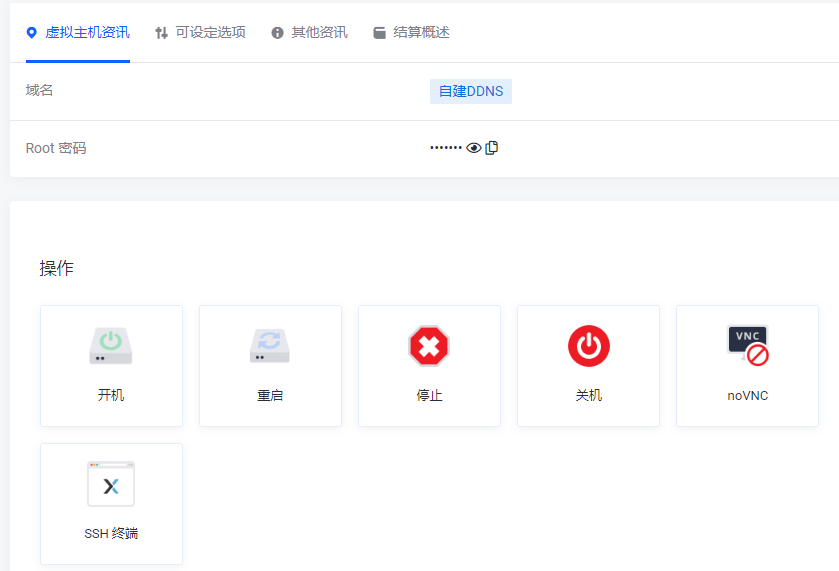
用面板自带的vnc ssh终端 root密码在面板复制
批注 2020-02-29 010609.png
粘贴的快捷键 shift+insert
登录后在终端输入命令curl ip.sb即可看到自己当前的IP 把自己的域名解析到此IP
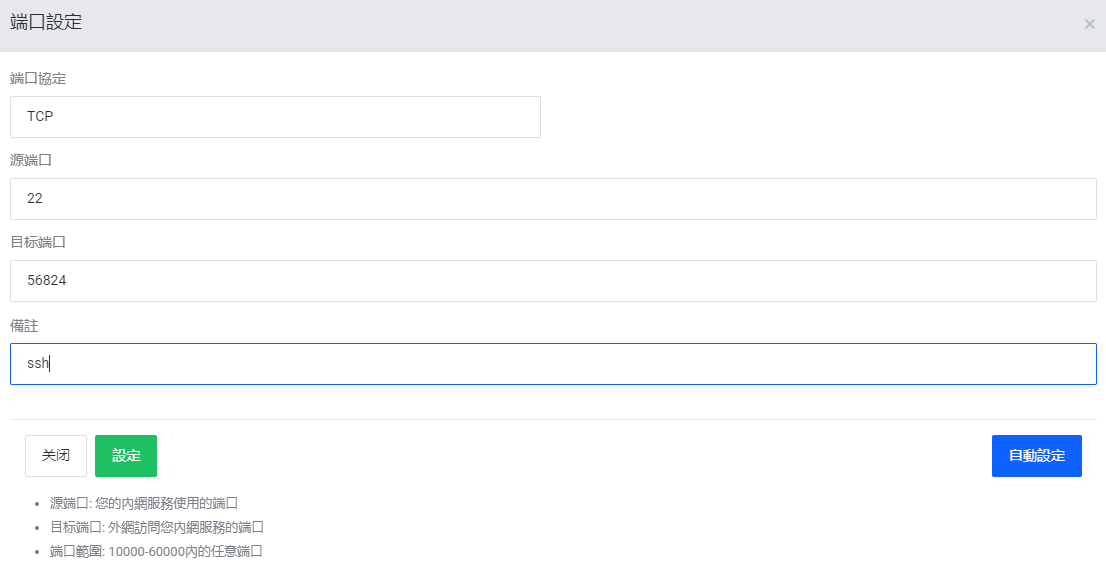
2.添加端口
在端口管理添加一个用于ssh连接的外网端口
批注 2020-02-29 011716.png
连接的时候用 域名:56824进行连接

安装v2ray

1.一键安装
bash <(curl -L -s https://install.direct/go.sh)
2.修改配置为ws
路径 /etc/v2ray/config.json
建议直接删除原文件rm /etc/v2ray/config.json
新建文件vi /etc/v2ray/config.json
粘贴以下模板 注意修改正确的uuid 可以使用原文档的或者自己现有的

{
  "inbounds": [{
    "port": 55555, #此端口在后面反代要用
    "protocol": "vmess",
    "settings": {
      "clients": [
        {
          "id": "xxxxxxx", #uuid 客户端连接要用
          "level": 1,
          "alterId": 0
        }
      ]
    },
      "streamSettings": {
        "network":"ws"
      }    
  }],
  "outbounds": [{
      "protocol": "freedom",  
      "settings": {}
  },{
    "protocol": "blackhole",
    "settings": {},
    "tag": "blocked"
  }],
  "routing": {
    "rules": [
      {
        "type": "field",
        "ip": ["geoip:private"],
        "outboundTag": "blocked"
      }
    ]
  }
}

3.重启v2ray
service v2ray restart

反代WebSocket

参看雷老板的教程
https://docs.anyhk.net/anyhk-nat/nat-jian-zhan/websocket

官网链接:https://anyhk.net/aff.php?aff=86

换源

vi /etc/apt/sources.list

deb https://mirrors.ustc.edu.cn/debian stretch main contrib non-free
deb https://mirrors.ustc.edu.cn/debian stretch-updates main contrib non-free
deb https://mirrors.ustc.edu.cn/debian stretch-backports main contrib non-free
deb https://mirrors.ustc.edu.cn/debian-security/ stretch/updates main contrib non-free

apt-get update && apt-get upgrade

安装宝塔

https://www.feiji.work/2019/20.html
wget https://www.feiji.work/n1/bt/6.9.4/install.sh && sudo bash install.sh
安装完成可能有错误提示 直接reboot重启
查看面板入口:/etc/init.d/bt default

安装nginx

https://www.feiji.work/2019/41.html

打开ssh(注:如果以下步骤提示缺少文件,可以在宝塔后台执行一次安装Nginx,在下载完脚本后直接取消安装即可。)

cd /www/server/panel/install #如果目录存在nginx 先rm
wget https://www.feiji.work/n1/bt/nginx.sh 下载nginx.sh
sh nginx.sh install #直接安装

安装Nginx出现checking for GD library ... not found错误
https://de.lib.im/linux-gd.html
apt-get -y install libgd2-xpm-dev build-essential重新安装

报错Starting nginx... nginx: [emerg] getpwnam("www") failed in /www/server/nginx/conf/nginx.conf:1
https://blog.csdn.net/rebel_yangke/article/details/58601731
修改/www/server/nginx/conf/nginx.conf 两个www改成root 再重启

pppoe宽带拨号

https://xaolong.com/post/279.html
https://malagege.github.io/blog/2019/01/26/Linux%E4%BD%BF%E7%94%A8pppoe%E9%80%A3%E7%B7%9A%E6%96%B9%E6%B3%95%E5%B0%8F%E8%A8%98/

apt install pppoeconf -y
apt install isc-dhcp-server -y

vi /etc/default/isc-dhcp-server
#将INTERFACESv4=""修改为INTERFACESv4="br0"
#在INTERFACESv6=""的前面加个#,修改为#INTERFACESv6=""

mv /etc/dhcp/dhcpd.conf /etc/dhcp/dhcpd.conf.bak

vi /etc/dhcp/dhcpd.conf  ###里面的所有内容
###
option domain-name "phicomm-n1";
option domain-name-servers 119.29.29.29;
subnet 192.168.1.0 netmask 255.255.255.0 {
    range 192.168.1.101 192.168.1.254;
    option subnet-mask 255.255.255.0;
    option broadcast-address 192.168.1.255;
    option routers 192.168.1.2;
    option domain-name-servers 119.29.29.29;
}
default-lease-time 600;
max-lease-time 7200;
authoritative;
###

vi /etc/network/interfaces
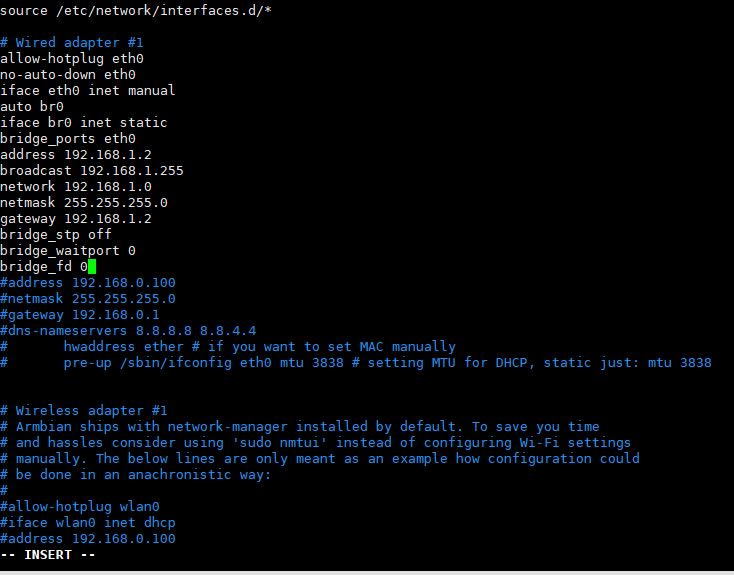
#iface eth0 inet dhcp 改为iface eth0 inet manual 后面增加以下内容 ###里面的全部 见图一
###
auto br0
iface br0 inet static
bridge_ports eth0
address 192.168.1.2
broadcast 192.168.1.255
network 192.168.1.0
netmask 255.255.255.0
gateway 192.168.1.2
bridge_stp off              
bridge_waitport 0           
bridge_fd 0
###

vi /etc/sysctl.conf
#去掉net.ipv4.ip_forward=1前面的#号

sysctl -p

vi  /etc/rc.local
#在 exit 0 前一行加以下内容
iptables -t nat -A POSTROUTING -j MASQUERADE

reboot

批注 2019-12-29 185147.png

n1接光猫 #n1已经固定IP 192.168.1.2

pppoeconf #进入拨号向导
#第一个选no
#删除username 输入宽带账号
#输入宽带密码
#之后全部 yes

poff -a # 關閉全部pppoe

查看状态
plog
ip addr show ppp0

开机自动拨号
vi /etc/rc.local #在 exit 0 前一行加一句:
pon dsl-provider

账号密码配置文件地址/etc/ppp/pap-secrets

动态域名解析dns

https://github.com/NewFuture/DDNS

git clone https://github.com/NewFuture/DDNS
cd DDNS
./run.py #运行一次 生成config.json配置文件
vi config.json #修改 id 域名 token
./task.sh

说明:朋友账号帮买的小鸡,没有账户,只有root和密码。安装vnstat来统计流量

安装vnStat

apt-get install vnstat #apt安装
vnstat -u -i eth0 #生成流量统计数据库 'eth0'用'ip a'命令查看
systemctl stop vnstat #停止 vnStat 服务
chown vnstat:vnstat /var/lib/vnstat/.eth0 #修改 .eth0 文件的权限
systemctl start vnstat #启动 vnStat 服务

查看流量信息

vnstat -l #实时流量
vnstat -d #日流量
vnstat -m #月流量

参考:https://sb.sb/blog/debian-install-vnstat/

说明:telegram的mtproto最近挂得很快,搜索了下发现用国内机子中转下,同时找到了inner-ss。下面是国内小鸡上的操作,国外的酸酸正常使用的情况。
不仅仅电报可以用,老毛子固件的transocks应该也行,配合gfwlist

1.下载自己服务器对应的版本 https://github.com/ihciah/inner-shadowsocks/releases
2.上传到服务器目录下/root/inner-ss/ 只是举例,按自己实际情况
3.编辑config.json

{
  "listen": "0.0.0.0",
  "port": 23333, #socks5的端口
  "auth": false, #认证默认关闭
  "username": "ihc", #用户名
  "password": "iah", #密码
  "servers": ["ss://RC4-MD5:pass1@ip1:port1", "ss://RC4-MD5:pass2@ip2:port2"], #酸酸服务器
  "maxfail": 3,
  "recovertime": 600,
  "starttimeout": 3,
  "remotetimeout": 120,
  "insidetimeout": 120,
  "whitelistenable": false,
  "whitelistdomains": [".telegram.org"],
  "whitelistips": ["::/0", "0.0.0.0/0", "91.108.4.0/22", "91.108.8.0/22", "91.108.56.0/22", "109.239.140.0/24", "149.154.160.0/20", "149.154.164.0/22", "2001:67c:4e8::/48"]
}

4.开机启动后台运行(Debian8)
vi /etc/rc.local
在"exit 0"前添加一行
nohup /root/inner-ss/inner-ss -c /root/inner-ss/config.json > /dev/null 2>&1 &
给权限
chmod +x /etc/rc.local