标签 代码 下的文章

执行lsblk命令查看能否正常识别mmcblk1分区,若不能识别则无法刷入emmc

install.sh文件代码如下

#!/bin/sh
 
echo "Start script create MBR and filesystem"
 
DEV_EMMC=/dev/mmcblk1
 
echo "Start backup u-boot default"
 
dd if="${DEV_EMMC}" of=/boot/u-boot-default.img bs=1M count=4
 
echo "Start create MBR and partittion"
 
parted -s "${DEV_EMMC}" mklabel msdos
# `bootloader` / `reserved` occupies [0, 100M).
# Sector size is 512B.
parted -s "${DEV_EMMC}" unit s mkpart primary fat32 204800 466943  # [100M, 228M)
parted -s "${DEV_EMMC}" unit s mkpart primary ext4 466944 100%     # [228M, ...]
 
echo "Start restore u-boot"
 
dd if=/boot/u-boot-default.img of="${DEV_EMMC}" conv=fsync bs=1 count=442
dd if=/boot/u-boot-default.img of="${DEV_EMMC}" conv=fsync bs=512 skip=1 seek=1
 
sync
 
echo "Done"
 
echo "Start copy system for eMMC."
 
mkdir -p /ddbr
chmod 777 /ddbr
 
PART_BOOT="/dev/mmcblk1p1"
PART_ROOT="/dev/mmcblk1p2"
DIR_INSTALL="/ddbr/install"
 
if [ -d $DIR_INSTALL ] ; then
    rm -rf $DIR_INSTALL
fi
mkdir -p $DIR_INSTALL
 
if grep -q $PART_BOOT /proc/mounts ; then
    echo "Unmounting BOOT partiton."
    umount -f $PART_BOOT
fi
echo -n "Formatting BOOT partition..."
mkfs.vfat -n "BOOT_EMMC" $PART_BOOT
echo "done."
 
mount -o rw $PART_BOOT $DIR_INSTALL
 
echo -n "Cppying BOOT..."
cp -r /boot/* $DIR_INSTALL && sync
echo "done."
 
echo -n "Edit init config..."
sed -e "s/ROOTFS/ROOT_EMMC/g" \
 -i "$DIR_INSTALL/uEnv.ini"
echo "done."
 
rm $DIR_INSTALL/s9*
rm $DIR_INSTALL/aml*
rm -rf $DIR_INSTALL/n1*
 
umount $DIR_INSTALL
 
if grep -q $PART_ROOT /proc/mounts ; then
    echo "Unmounting ROOT partiton."
    umount -f $PART_ROOT
fi
 
if [ -e /boot/n1-logo.img ] ; then
# The logo should be no greater than 8M. (It's less than 5M in my case.)
echo "Installing Ubuntu logo..."
dd if=/boot/n1-logo.img of=/dev/mmcblk1 bs=1M seek=644
echo "done."
fi
 
echo "Formatting ROOT partition..."
# 0x27400000 ~ +0x800000 is used by `/dev/env`. Mark them as bad blocks
# so that they won't be used by Linux. (It seems that they're overwritten
# each time system boots if invalid.)
#
# As `ROOT_EMMC` starts from 228M, offset of `/dev/env` in this partition
# is 400M.
#
# Here we generates a sequence of block number in range [400M, 408M), with
# block size = 4K, and pass them as bad blocks to `mke2fs`.
#
# Given that we're using 4K blocks, the mapped block number will be [102400,
# 104448), or [102400, 104447].
#
# `/dev/logo` is in range [644M, 772M) (of the whole `/dev/mmcblk1`, not this
# partition. Minus 228M yourself.). Mark them as bad blocks if you want to
# preserve or replace the boot logo.
#
# All other partitions (`recovery`, `rsv`, `tee`, `crypt`, `misc`, `boot`,
# `system`, `data` is already overwritten by the original script, as it
# places the first partition at 700M.)
echo "Marked blocks used by /dev/env as bad to protected them from being overwritten."
seq 102400 104447 > /tmp/reservedblks
if [ -e /boot/n1-logo.img ] ; then
echo "Marked blocks used by /dev/logo as bad."
seq 106496 108543 >> /tmp/reservedblks  # Only first 8M of `/dev/logo` is reserved.
fi
mke2fs -F -q -t ext4 -L ROOT_EMMC -m 0 $PART_ROOT -b 4096 -l /tmp/reservedblks
e2fsck -n $PART_ROOT
echo "done."
 
echo "Copying ROOTFS."
 
mount -o rw $PART_ROOT $DIR_INSTALL
 
cd /
echo "Copy BIN"
tar -cf - bin | (cd $DIR_INSTALL; tar -xpf -)
#echo "Copy BOOT"
#mkdir -p $DIR_INSTALL/boot
#tar -cf - boot | (cd $DIR_INSTALL; tar -xpf -)
echo "Create DEV"
mkdir -p $DIR_INSTALL/dev
#tar -cf - dev | (cd $DIR_INSTALL; tar -xpf -)
echo "Copy ETC"
tar -cf - etc | (cd $DIR_INSTALL; tar -xpf -)
echo "Copy HOME"
tar -cf - home | (cd $DIR_INSTALL; tar -xpf -)
echo "Copy LIB"
tar -cf - lib | (cd $DIR_INSTALL; tar -xpf -)
echo "Create MEDIA"
mkdir -p $DIR_INSTALL/media
#tar -cf - media | (cd $DIR_INSTALL; tar -xpf -)
echo "Create MNT"
mkdir -p $DIR_INSTALL/mnt
#tar -cf - mnt | (cd $DIR_INSTALL; tar -xpf -)
echo "Copy OPT"
tar -cf - opt | (cd $DIR_INSTALL; tar -xpf -)
echo "Create PROC"
mkdir -p $DIR_INSTALL/proc
echo "Copy ROOT"
tar -cf - root | (cd $DIR_INSTALL; tar -xpf -)
echo "Create RUN"
mkdir -p $DIR_INSTALL/run
echo "Copy SBIN"
tar -cf - sbin | (cd $DIR_INSTALL; tar -xpf -)
echo "Copy SELINUX"
tar -cf - selinux | (cd $DIR_INSTALL; tar -xpf -)
echo "Copy SRV"
tar -cf - srv | (cd $DIR_INSTALL; tar -xpf -)
echo "Create SYS"
mkdir -p $DIR_INSTALL/sys
echo "Create TMP"
mkdir -p $DIR_INSTALL/tmp
echo "Copy USR"
tar -cf - usr | (cd $DIR_INSTALL; tar -xpf -)
echo "Copy VAR"
tar -cf - var | (cd $DIR_INSTALL; tar -xpf -)
 
echo "Copy fstab"
 
rm $DIR_INSTALL/etc/fstab
cp -a /root/fstab $DIR_INSTALL/etc/fstab
 
rm $DIR_INSTALL/root/install.sh
rm $DIR_INSTALL/root/fstab
rm $DIR_INSTALL/usr/bin/ddbr
rm $DIR_INSTALL/usr/bin/ddbr_backup_nand
rm $DIR_INSTALL/usr/bin/ddbr_backup_nand_full
rm $DIR_INSTALL/usr/bin/ddbr_restore_nand
 
 
cd /
sync
 
umount $DIR_INSTALL
 
echo "*******************************************"
echo "Complete copy OS to eMMC "
echo "*******************************************"

执行shutdown now关机断电,拔掉u盘后插电即可直接进入armbian

参考:
https://www.leonlu.cc/hobby/note005-phicomm-p1-linux/
https://isolated.site/2018/12/08/my-script-for-installing-armbian-5-67-into-phicomm-n1/

说明:和套cf一样,只不过这次套的是腾讯云cdn,每个月有免费的10g,新用户注册送50g连送6个月。由于要套腾讯云cdn,所以域名要求是备案过的。
联通适用

宝塔面板添加网站

1.输入自己的网址,ftp、数据库、php都不用
2.申请ssl
点击「设置」——SSL——Let’s Encrypt,成功申请SSL后,保存
3.更改 配置文件
再次点击站点「设置」的「配置文件」选项,在最后一个}前添加如下代码:

    location / {
    proxy_redirect off;
    proxy_pass http://127.0.0.1:25534;#25534是v2ray的端口号,注意和之后安装的一致
    proxy_http_version 1.1;
    proxy_set_header Upgrade $http_upgrade;
    proxy_set_header Connection "upgrade";
    proxy_set_header Host $http_host;
    }

4.面板首页重启Nignx

安装v2ray

1.安装命令
bash <(curl -L -s https://install.direct/go.sh)
2.修改v2ray配置文件,路径/etc/v2ray/config.json,修改后记得重启v2ray
参考配置:

{
    "log": {
        "access": "/var/log/v2ray/access.log",
        "error": "/var/log/v2ray/error.log",
        "loglevel": "warning"
    },
    "inbound": {
        "port": 25534,#自己的端口号需要对应
        "protocol": "vmess",
        "settings": {
            "udp": true,
            "clients": [
                {
                    "id": "e5cee2d4-d28b-4b8a-83ef-cf788bf1****",#自己的id
                    "level": 1,
                    "alterId": 233
                }
            ]
        },
        "streamSettings": {
            "network": "ws"
        }
    },
    "outbound": {
        "protocol": "freedom",
        "settings": {}
    },
    "outboundDetour": [
        {
            "protocol": "blackhole",
            "settings": {},
            "tag": "blocked"
        }
    ],
    "routing": {
        "strategy": "rules",
        "settings": {
            "rules": [
                {
                    "type": "field",
                    "ip": [
                        "0.0.0.0/8",
                        "10.0.0.0/8",
                        "100.64.0.0/10",
                        "127.0.0.0/8",
                        "169.254.0.0/16",
                        "172.16.0.0/12",
                        "192.0.0.0/24",
                        "192.0.2.0/24",
                        "192.168.0.0/16",
                        "198.18.0.0/15",
                        "198.51.100.0/24",
                        "203.0.113.0/24",
                        "::1/128",
                        "fc00::/7",
                        "fe80::/10"
                    ],
                    "outboundTag": "blocked"
                }
            ]
        }
    }
}

3.重启V2Ray
service v2ray restart

腾讯云cdn设置

1.添加域名 https://console.cloud.tencent.com/cdn/access
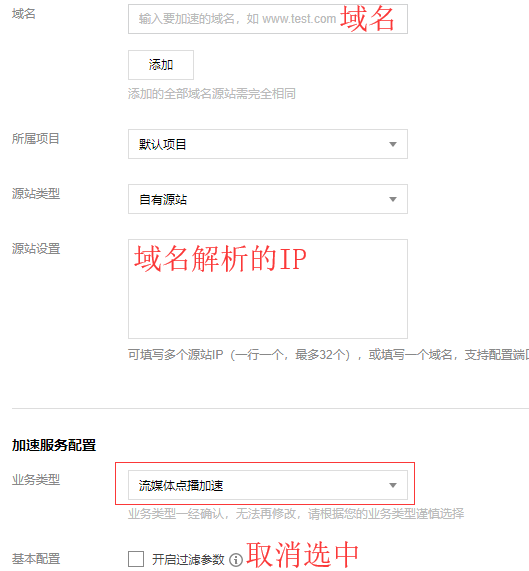
2.源站填写IP,需要注意的是:加速类型选择流媒体点播加速
TIM截图20190611205030.png
3.https配置
高级配置,添加Https。
ssl证书直接从之前的宝塔面板复制过来,腾讯云的‘证书内容’对应宝塔的‘证书(PEM格式)’注意复制过来之后中间有一行空格需要手动删除;腾讯云的‘私钥内容’对应宝塔的‘密钥(KEY)’
回源记得选择协议跟随
4.访问控制-把过滤参数关闭
缓存配置-全部改成0
回源设置-关闭Range回源

域名解析

在自己的域名解析服务商添加‘CNAME’记录
TIM截图20190611210821.png

使用

开全局模式
TIM截图20190611211221.png

参考:
https://sumrday.net/exp/lt-xyml.html
https://jdbblog.top/84.html

前言:
v2ray通过cloudflare拯救被封的IP,之前一直用的233blog的一键脚本,奈何nfp的ovz换了4次系统都没能成功实现,所以手动搭建了,顺便开个记录贴

域名解析

1.使用cloudflare解析域名,为了方便测试,可以先把云朵点灰、关闭cdn(非必要,如果点灰了最后记得再次点亮云朵图标开启cdn)

安装宝塔面板

1.根据自己的系统使用正确的命令安装:

Centos安装命令
yum install -y wget && wget -O install.sh http://download.bt.cn/install/install.sh && sh install.sh

Debian安装命令
wget -O install.sh http://download.bt.cn/install/install-ubuntu.sh && bash install.sh

2.安装完成后,登录BT面板,安装nginx
3.添加站点
输入自己的网址,ftp、数据库、php都不用
4.申请ssl
点击「设置」——SSL——Let’s Encrypt,成功申请SSL后,保存
5.更改 配置文件
再次点击站点「设置」的「配置文件」选项,在最后一个}前添加如下代码:

    location / {
    proxy_redirect off;
    proxy_pass http://127.0.0.1:25534;#25534是v2ray的端口号,注意和之后安装的一致
    proxy_http_version 1.1;
    proxy_set_header Upgrade $http_upgrade;
    proxy_set_header Connection "upgrade";
    proxy_set_header Host $http_host;
    }

6.重启Nignx

安装v2ray

1.安装命令
bash <(curl -L -s https://install.direct/go.sh)
2.修改v2ray配置文件,路径/etc/v2ray/config.json,修改后记得重启v2ray
参考配置:

{
    "log": {
        "access": "/var/log/v2ray/access.log",
        "error": "/var/log/v2ray/error.log",
        "loglevel": "warning"
    },
    "inbound": {
        "port": 25534,#自己的端口号需要对应
        "protocol": "vmess",
        "settings": {
            "udp": true,
            "clients": [
                {
                    "id": "e5cee2d4-d28b-4b8a-83ef-cf788bf1****",#自己的id
                    "level": 1,
                    "alterId": 233
                }
            ]
        },
        "streamSettings": {
            "network": "ws"
        }
    },
    "outbound": {
        "protocol": "freedom",
        "settings": {}
    },
    "outboundDetour": [
        {
            "protocol": "blackhole",
            "settings": {},
            "tag": "blocked"
        }
    ],
    "routing": {
        "strategy": "rules",
        "settings": {
            "rules": [
                {
                    "type": "field",
                    "ip": [
                        "0.0.0.0/8",
                        "10.0.0.0/8",
                        "100.64.0.0/10",
                        "127.0.0.0/8",
                        "169.254.0.0/16",
                        "172.16.0.0/12",
                        "192.0.0.0/24",
                        "192.0.2.0/24",
                        "192.168.0.0/16",
                        "198.18.0.0/15",
                        "198.51.100.0/24",
                        "203.0.113.0/24",
                        "::1/128",
                        "fc00::/7",
                        "fe80::/10"
                    ],
                    "outboundTag": "blocked"
                }
            ]
        }
    }
}

3.V2Ray可使用的命令:

sudo service v2ray start #启动V2Ray
sudo service v2ray stop #停止运行V2Ray
sudo service v2ray restart #重启V2Ray
sudo service v2ray status #查看V2Ray状态

说明:搬家到do了,之前是php5.4,这次新服务器装的7.0,打开网站就提示Database Server Error

解决方法

修改根网站目录下的config.inc.php文件

$db = new Typecho_db("Mysql","typecho_"); #修改这句代码,在55行
$db = new Typecho_db("Pdo_Mysql","typecho_"); #改为Pdo_Mysql

说明:一片文章结尾感觉还是需要有相关文章推荐,typecho的handsome主题只是在右侧有随机文章推荐。

实现方法

1.后台--控制台--外观--编辑当前外观--post.php,在合适的位置增加以下代码:

<?php $this->related(5)->to($relatedPosts); ?> 
<?php if ($relatedPosts->have()): ?> 
<h3> <?php _e('相关文章:'); ?> </h3> 
    <?php while ($relatedPosts->next()): ?> 
    <li><a href="<?php $relatedPosts->permalink(); ?>" title="<?php $relatedPosts->title(); ?>"> <?php $relatedPosts->title(); ?> </a></li> 
    <?php endwhile; ?> 
<?php else: ?> <li>没有相关文章</li> 
<?php endif; ?>

本来想实现没有相关文章就显示随机文章的,无奈所学知识匮乏,以后再实现吧

说明:适用ss-panel-v3 glzjin mod UIChanges,默认的分类有普通用户节点和VIP用户节点,添加需要修改源码

节点列表文件路径

网站目录/resources/views/material/user/node.tpl

修改代码

1.分析代码发现一个分类是一段,那么依瓢画葫芦复制一段。

<p class="card-heading">普通用户节点</p> #从本行开始,包含
...
<p class="card-heading">VIP用户节点</p> #本行之前,不含

2.需要修改的内容:
2.1 普通用户节点这几个字改成你新分类的名称
2.2 {$id=0}这行的值改一下,鉴于VIP的是1000,那我们改成100吧
2.3 {if $node_isv6[$prefix] == 0 && $node_class[$prefix]==0}判断条件需要修改$node_class的值就是后台设置“节点等级(不分级请填0,分级为数字)”的值。需要注意修改后的值可能也满足VIP节点的判断条件!=0

相关链接

ss-panel-v3-mod的坑 https://sixu.life/the-pit-of-sspanel-v3-mod.html
s*s-panel后端搭建 https://sixu.life/spanel-backend-build.html

菜鸟一枚,根据自己操作写的记录贴,有不当的地方请指出

下载v2ray

下载地址:https://github.com/v2ray/v2ray-core/releases/
r2d选择arm:https://github.com/v2ray/v2ray-core/releases/download/v3.43/v2ray-linux-arm.zip

上传至路由器

目录:根据自己实际情况,之前又mt工具箱,所以直接放里面了
/data/etc/misstar/applications/v2ray
1.解压上传客户端文件

2.上传客户端配置文件
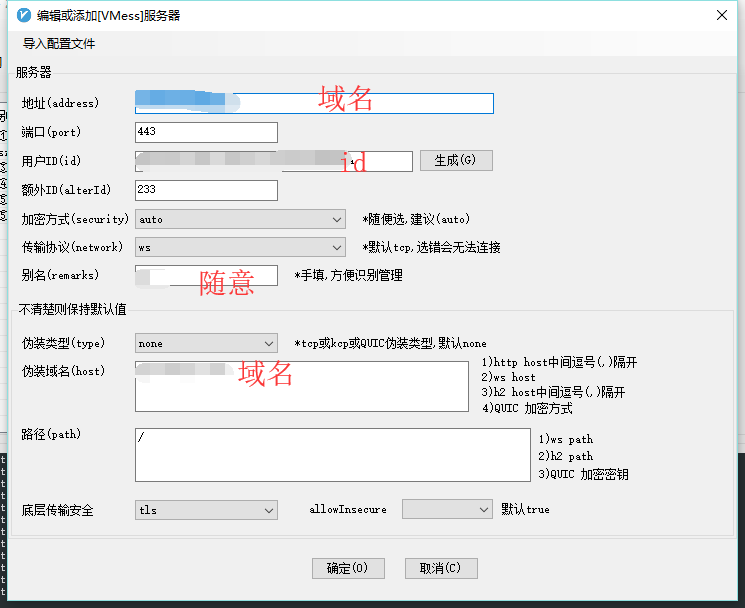
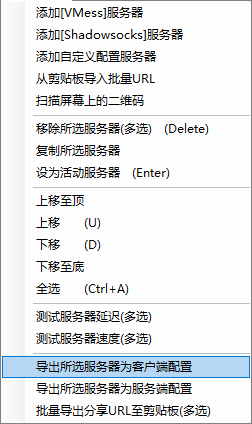
2.1导出客户端配置并上传至路由器
image

2.2修改配置文件,参考下面代码

{
  "log": {
    "access": "",
    "error": "error.log", 
    "loglevel": "warning"
  },
  "inbound": {
    "port": 2333,
    "listen": "0.0.0.0",
    "protocol": "socks",
    "domainOverride": [
      "tls",
      "http"
    ],
    "settings": {
      "auth": "noauth",
      "udp": true,
      "ip": "127.0.0.1",
      "clients": null
    },
    "streamSettings": null
  },
  "outbound": {
    "tag": "agentout",
    "protocol": "vmess",
    "settings": {
      "vnext": [
        {
          "address": "us2.sangyu.tw",
          "port": 443,
          "users": [
            {
              "id": "xxxxxxxxxxxxxxxxxxx",
              "alterId": 233,
              "email": "t@t.tt",
              "security": "aes-128-gcm"
            }
          ]
        }
      ],
      "servers": null
    },
    "streamSettings": {
      "network": "ws",
      "security": "tls",
      "tlsSettings": {
        "allowInsecure": true,
        "serverName": null
      },
      "tcpSettings": null,
      "kcpSettings": null,
      "wsSettings": {
        "connectionReuse": true,
        "path": "/",
        "headers": {
          "Host": "us2.sangyu.tw"
        }
      },
      "httpSettings": null
    },
    "mux": {
      "enabled": true
    }
  },
    "inboundDetour":[
        {
           "protocol":"dokodemo-door",
           "port":1099, 
           "settings":{
              "address":"",
              "network":"tcp",
              "timeout":0,
              "followRedirect":true
           }
        }
     ],
  "outboundDetour": [
    {
      "protocol": "freedom",
      "settings": {
        "response": null
      },
      "tag": "direct"
    },
    {
      "protocol": "blackhole",
      "settings": {
        "response": {
          "type": "http"
        }
      },
      "tag": "blockout"
    }
  ],
  "dns": {
    "servers": [
      "8.8.8.8",
      "8.8.4.4",
      "localhost"
    ]
  },
  "routing": {
    "strategy": "rules",
    "settings": {
      "domainStrategy": "IPIfNonMatch",
      "rules": [
        {
          "type": "field",
          "port": null,
          "outboundTag": "direct",
          "ip": null,
          "domain": [
            "geosite:cn"
          ]
        },
        {
          "type": "field",
          "port": null,
          "outboundTag": "direct",
          "ip": [
            "geoip:cn"
          ],
          "domain": null
        },
        {
          "type": "field",
          "port": null,
          "outboundTag": "direct",
          "ip": [
            "0.0.0.0/8",
            "10.0.0.0/8",
            "100.64.0.0/10",
            "127.0.0.0/8",
            "169.254.0.0/16",
            "172.16.0.0/12",
            "192.0.0.0/24",
            "192.0.2.0/24",
            "192.168.0.0/16",
            "198.18.0.0/15",
            "198.51.100.0/24",
            "203.0.113.0/24",
            "::1/128",
            "fc00::/7",
            "fe80::/10"
          ],
          "domain": null
        }
      ]
    }
  }
}

运行软件

1.切换到目录下:/data/etc/misstar/applications/v2ray
2.赋予权限:

chmod +x /data/etc/misstar/applications/v2ray/v2ray
chmod +x /data/etc/misstar/applications/v2ray/v2ctl

3../v2ray --config=/data/etc/misstar/applications/v2ray/config.json
后台运行nohup /data/etc/misstar/applications/v2ray/v2ray --config=/data/etc/misstar/applications/v2ray/config.json &

参考:
https://ralf.ren/717
https://cloverkit.coding.me/2018/08/07/配置-V2Ray-和路由器透明代理

1、依赖安装

apt-get update
apt-get install git wget python-setuptools -y
apt-get install python-pip
pip install cymysql

2、libsodium 安装

apt-get install build-essential -y
wget https://github.com/jedisct1/libsodium/releases/download/1.0.16/libsodium-1.0.16.tar.gz
tar xf libsodium-1.0.16.tar.gz && cd libsodium-1.0.16
./configure && make -j2 && make install
echo /usr/local/lib > /etc/ld.so.conf.d/usr_local_lib.conf
ldconfig
cd ../ && rm -rf libsodium*

3、下载源代码并安装依赖

git clone -b manyuser https://github.com/Anankke/shadowsocks.git
cd shadowsocks
pip install -r requirements.txt

4、配置文件

cp apiconfig.py userapiconfig.py
cp config.json user-config.json
vi userapiconfig.py

5、运行SSR

python server.py 用于调试的
./run.sh 无日志后台运行
./logrun.sh 有日志后台运行

6、开机启动
假设你的shadowsocks是安装在root目录下,可以这样:
vi /etc/rc.local
加入一条:
sh /root/shadowsocks/run.sh
然后:
chmod +x /etc/rc.local
Debian 9开机启动 https://sixu.life/debian-9-etc-rc-local.html
7、使用Supervisor守护进程启动ssr

# 安装
apt-get install supervisor -y

# 写入配置
vi /etc/supervisor/conf.d/ssr.conf

# 写入以下内容
[program:ssr]
command=python /root/shadowsocks/server.py 
autorestart=true
autostart=true
user=root

# 重启Supervisor服务。
/etc/init.d/supervisor restart

# 重启 ssr
supervisorctl restart ssr

# 查看Supervisor服务运行状态。
supervisorctl status

# 如果遇到问题,可以检查日志:
supervisorctl tail -f ssr stderr

# 如果使用supervisor进程守护,需要修改文件vi /etc/default/supervisor,添加一行:
ulimit -n 1024000

8、加速
Debian OpenVZ 魔改 BBR:https://sixu.life/debian-openvz-magic-change-bbr.html
Debian centos bbr加速:https://sixu.life/the-acceleration-effect-of-bbr-is-obvious.html

参考:
https://blog.starryvoid.com/archives/176.html

https://github.com/zyl6698/ss-panel-v3-mod-with-f2fpay/wiki/%E5%AE%89%E8%A3%85%E9%AD%94%E6%94%B9%E5%90%8E%E7%AB%AF

https://github.com/iMeiji/shadowsocks_install/wiki/%E6%90%AD%E5%BB%BA-sspanel-v3-%E9%AD%94%E6%94%B9%E7%89%88%E8%AE%B0%E5%BD%95