标签 权限 下的文章

前端搭建

https://docs.v2board.com/deploy/aapanel.html
按照官方教程操作
避免出现问题 最好使用全新重装的系统按步骤操作 大佬随意
出现玄学的问题reboot重启vps也许就解决了

每次修改 .env 文件后需要执行以下命令重建缓存
php artisan config:cache

500错误尝试重新给予目录权限 在站点域名目录下执行
chown -R www:www *

后端搭建

https://github.com/ColetteContreras/v2ray-poseidon/wiki/0201-%E5%AF%B9%E6%8E%A5-V2board-%E6%95%99%E7%A8%8B

#一键脚本
curl -L -s https://raw.githubusercontent.com/ColetteContreras/v2ray-poseidon/master/install-release.sh | bash
#删除配置文件
rm /etc/v2ray/config.json
编辑配置文件
vi /etc/v2ray/config.json
重启v2ray
service v2ray restart

传输协议 伪装域名和路径的配置示例

{
    "path": "/路径",
    "headers": {
      "Host": "域名"
    }
}

说明:朋友账号帮买的小鸡,没有账户,只有root和密码。安装vnstat来统计流量

安装vnStat

apt-get install vnstat #apt安装
vnstat -u -i eth0 #生成流量统计数据库 'eth0'用'ip a'命令查看
systemctl stop vnstat #停止 vnStat 服务
chown vnstat:vnstat /var/lib/vnstat/.eth0 #修改 .eth0 文件的权限
systemctl start vnstat #启动 vnStat 服务

查看流量信息

vnstat -l #实时流量
vnstat -d #日流量
vnstat -m #月流量

参考:https://sb.sb/blog/debian-install-vnstat/

官网简介:从你的 Linux(X86/ARM)/Mac/BSD 系统环境下发起 traceroute 请求,附带链路可视化,兼容性更好,支持 JSON 格式输出。

下载BestTrace

wget https://cdn.ipip.net/17mon/besttrace4linux.zip #下载
unzip besttrace4linux.zip #解压
chmod +x besttrace #赋予BestTrace执行权限

使用BestTrace

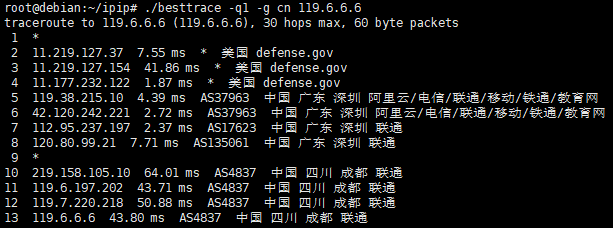
./besttrace -q1 -g cn 119.6.6.6
TIM20190531012438.png

参考:https://www.xiaoz.me/archives/11769

说明:telegram的mtproto最近挂得很快,搜索了下发现用国内机子中转下,同时找到了inner-ss。下面是国内小鸡上的操作,国外的酸酸正常使用的情况。
不仅仅电报可以用,老毛子固件的transocks应该也行,配合gfwlist

1.下载自己服务器对应的版本 https://github.com/ihciah/inner-shadowsocks/releases
2.上传到服务器目录下/root/inner-ss/ 只是举例,按自己实际情况
3.编辑config.json

{
  "listen": "0.0.0.0",
  "port": 23333, #socks5的端口
  "auth": false, #认证默认关闭
  "username": "ihc", #用户名
  "password": "iah", #密码
  "servers": ["ss://RC4-MD5:pass1@ip1:port1", "ss://RC4-MD5:pass2@ip2:port2"], #酸酸服务器
  "maxfail": 3,
  "recovertime": 600,
  "starttimeout": 3,
  "remotetimeout": 120,
  "insidetimeout": 120,
  "whitelistenable": false,
  "whitelistdomains": [".telegram.org"],
  "whitelistips": ["::/0", "0.0.0.0/0", "91.108.4.0/22", "91.108.8.0/22", "91.108.56.0/22", "109.239.140.0/24", "149.154.160.0/20", "149.154.164.0/22", "2001:67c:4e8::/48"]
}

4.开机启动后台运行(Debian8)
vi /etc/rc.local
在"exit 0"前添加一行
nohup /root/inner-ss/inner-ss -c /root/inner-ss/config.json > /dev/null 2>&1 &
给权限
chmod +x /etc/rc.local

说明:路由器新路由3作为客户端frpc,Google cloud香港有公网IP安装服务端frps

vps上安装服务端

1.下载服务端

#切换到root目录下
cd /root
#下载0.21版本
wget --no-check-certificate https://github.com/fatedier/frp/releases/download/v0.21.0/frp_0.21.0_linux_amd64.tar.gz
#解压
tar -xzvf frp_0.21.0_linux_amd64.tar.gz
#文件夹重命名
mv frp_0.21.0_linux_amd64 frp
#进入frp目录
cd frp
#赋予权限
chmod +x frps
#执行帮助命令测试frp是否能运行
./frps --help

2.写入配置文件

echo "[common]
bind_port = 7000
token = 12345678
dashboard_port = 7500
dashboard_user = admin
dashboard_pwd = admin
vhost_http_port = 10080
vhost_https_port = 10443
subdomain_host = sixu.life" > frps.ini

3.测试运行frps
./frps -c frps.ini
ctrl+c退出
4.开机启动

#编辑 开机启动文件
vi /etc/rc.local
#按 i 进入编辑模式并添加下面的命令到 exit 0 语句之前
nohup /root/frp/frps -c /root/frp/frps.ini &
#按 esc 退出编辑模式再按 :wq 保存并退出

路由器上配置

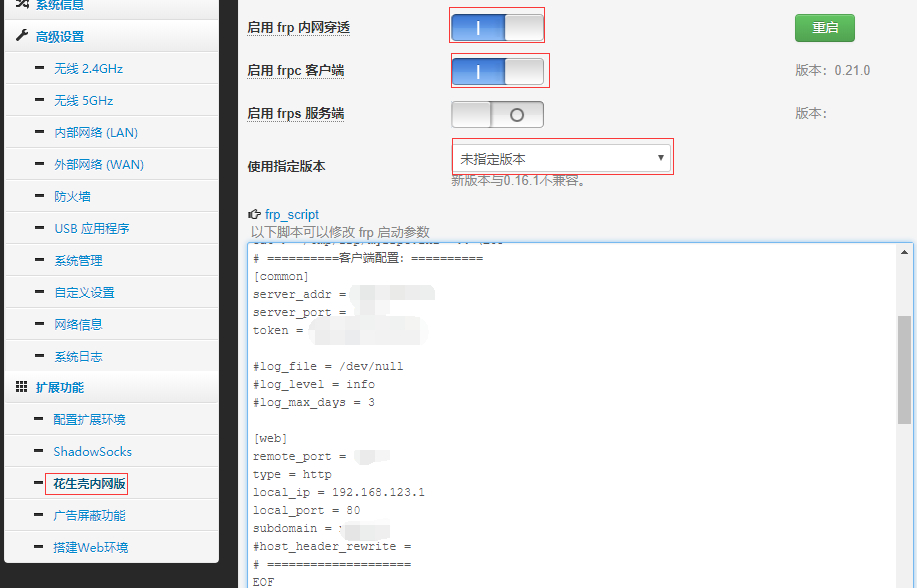
1.依次点击:花生壳内网版--frp
启用 frp 内网穿透 选中
启用 frpc 客户端 选中
2.修改配置文件

# ==========客户端配置:==========
[common]
server_addr = 对应服务器IP地址
server_port = 对应服务端的 bind_port
token = 对应服务端 token

#log_file = /dev/null
#log_level = info
#log_max_days = 3

[web]
remote_port = 对应服务端vhost_http_port
type = http
local_ip = 192.168.123.1
local_port = 80
subdomain = 自定义子域名,例如test.sixu.life,则此处自需要输入test
#host_header_rewrite = 
# ====================
EOF

3.点击应用本页设置
4.运行成功会看到类似的提示

login to server success, get run id [], server udp port [0]
start proxy success

image

域名解析

为了方便,可直接添加泛解析 * a记录指向服务器IP

其他

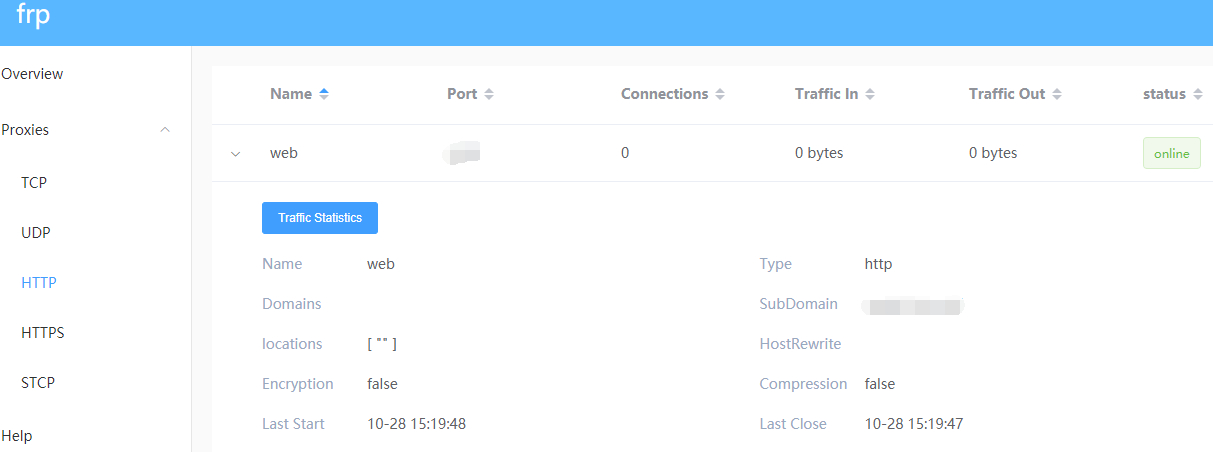
例如上文的设置来说:
1.登录服务端的 dashboard 的地址为:服务器ip:7500
2.外网访问地址为:test.sixu.life:10080
image

说明:ss-panel-v3使用的SMTP发邮件,之前阿里云国际版用465端口正常,迁移到DigitalOcean不能使用25和465给客服发ticket,得到的回复如下:

[scode type="share"]Thank you for reaching out to us. We're very sorry that you are facing issues with SMTP.

Stopping spam is a constant fight and due to this, your account has restrictions specifically on ports 25 and 465. However, you are be able to send out mail using port 587. You will need to open the port in your firewall.

We realize this is inconvenient, but many customers in your position move their mailing activities to a third party service such as SendGrid or similar which processes such mail separately from their droplet. I'm sorry for the frustration but we're not able to lift these port restrictions at this time.

In terms of a workaround, here are a few alternatives:

  1. Utilize port 587 for SMTP relay via another mail provider, for example G Suite/Gmail, Mailgun, etc. We have a guide on doing so using Postfix here:

https://www.digitalocean.com/community/tutorials/how-to-set-up-a-mail-relay-with-postfix-and-mailgun-on-ubuntu-16-04

  1. Configure your app or service to send mail directly using either a SMTP client connection (typically using port 587), or API call via another mail provider such as Sendgrid, Mailgun, Mandrill, etc.

Please note that with this restriction in place on port 25, mail servers hosted here will be unable to directly relay email to other mail servers, as communication between mail servers typically takes place on port 25.

We think the API is the best solution, as it is honestly more scalable and what we would use if we wanted to "future proof" the project.

Please feel free to reach out to us via this ticket if you have further queries or concerns, we will be around to help you out!

Regards,

Saurabh
Developer Support Specialist - DigitalOcean

(Check out our fantastic community articles: https://www.digitalocean.com/community)[/scode]
所以决定使用Gmail的587来发送邮件。

开启IMAP

1.在计算机上打开 Gmail。
2.点击右上方的“设置”图标。
3.点击转发和 POP/IMAP 标签。
4.在“IMAP 访问”部分,点击启用 IMAP。
5.点击保存更改。

开启安全性较低的应用的访问权限

直达链接:https://myaccount.google.com/lesssecureapps

SMTP设置

发送邮件 (SMTP) 服务器:smtp.gmail.com
要求 SSL:是
要求 TLS:是(如适用)
使用身份验证:是
TLS/STARTTLS 端口:587
完整名称或显示名称:您的姓名
帐号名、用户名或电子邮件地址:您的完整电子邮件地址
密码:您的 Gmail 密码

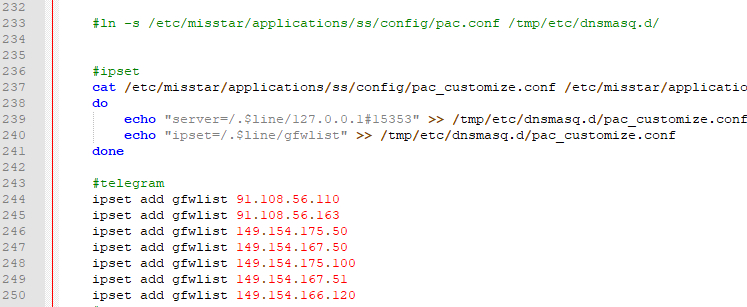
1.小米路由器r2d中 使用 mt工具箱3.0 的gfwlist模式,telegram不能直接连接。

2.当前通过netpeeker软件看到的IP如下:

ipset add gfwlist 91.108.56.110
ipset add gfwlist 91.108.56.163
ipset add gfwlist 149.154.175.50
ipset add gfwlist 149.154.167.50
ipset add gfwlist 149.154.175.100
ipset add gfwlist 149.154.167.51
ipset add gfwlist 149.154.166.120

3.修改工具箱中ss脚本
vi /etc/misstar/applications/ss/script/ss
添加到start函数末尾

start()
{
#此处为添加的内容
/etc/init.d/dnsmasq restart
}

4.给权限
chmod +x /etc/misstar/applications/ss/script/ss

image

参考:
https://laoyur.com/archives/267
https://gist.github.com/lanceliao/3099caed8750911dfe58

菜鸟一枚,根据自己操作写的记录贴,有不当的地方请指出

下载v2ray

下载地址:https://github.com/v2ray/v2ray-core/releases/
r2d选择arm:https://github.com/v2ray/v2ray-core/releases/download/v3.43/v2ray-linux-arm.zip

上传至路由器

目录:根据自己实际情况,之前又mt工具箱,所以直接放里面了
/data/etc/misstar/applications/v2ray
1.解压上传客户端文件

2.上传客户端配置文件
2.1导出客户端配置并上传至路由器
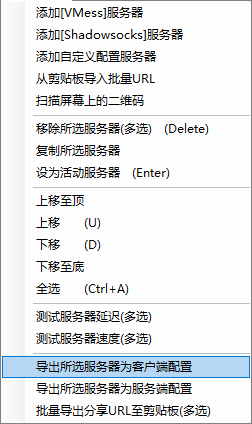
image

2.2修改配置文件,参考下面代码

{
  "log": {
    "access": "",
    "error": "error.log", 
    "loglevel": "warning"
  },
  "inbound": {
    "port": 2333,
    "listen": "0.0.0.0",
    "protocol": "socks",
    "domainOverride": [
      "tls",
      "http"
    ],
    "settings": {
      "auth": "noauth",
      "udp": true,
      "ip": "127.0.0.1",
      "clients": null
    },
    "streamSettings": null
  },
  "outbound": {
    "tag": "agentout",
    "protocol": "vmess",
    "settings": {
      "vnext": [
        {
          "address": "us2.sangyu.tw",
          "port": 443,
          "users": [
            {
              "id": "xxxxxxxxxxxxxxxxxxx",
              "alterId": 233,
              "email": "t@t.tt",
              "security": "aes-128-gcm"
            }
          ]
        }
      ],
      "servers": null
    },
    "streamSettings": {
      "network": "ws",
      "security": "tls",
      "tlsSettings": {
        "allowInsecure": true,
        "serverName": null
      },
      "tcpSettings": null,
      "kcpSettings": null,
      "wsSettings": {
        "connectionReuse": true,
        "path": "/",
        "headers": {
          "Host": "us2.sangyu.tw"
        }
      },
      "httpSettings": null
    },
    "mux": {
      "enabled": true
    }
  },
    "inboundDetour":[
        {
           "protocol":"dokodemo-door",
           "port":1099, 
           "settings":{
              "address":"",
              "network":"tcp",
              "timeout":0,
              "followRedirect":true
           }
        }
     ],
  "outboundDetour": [
    {
      "protocol": "freedom",
      "settings": {
        "response": null
      },
      "tag": "direct"
    },
    {
      "protocol": "blackhole",
      "settings": {
        "response": {
          "type": "http"
        }
      },
      "tag": "blockout"
    }
  ],
  "dns": {
    "servers": [
      "8.8.8.8",
      "8.8.4.4",
      "localhost"
    ]
  },
  "routing": {
    "strategy": "rules",
    "settings": {
      "domainStrategy": "IPIfNonMatch",
      "rules": [
        {
          "type": "field",
          "port": null,
          "outboundTag": "direct",
          "ip": null,
          "domain": [
            "geosite:cn"
          ]
        },
        {
          "type": "field",
          "port": null,
          "outboundTag": "direct",
          "ip": [
            "geoip:cn"
          ],
          "domain": null
        },
        {
          "type": "field",
          "port": null,
          "outboundTag": "direct",
          "ip": [
            "0.0.0.0/8",
            "10.0.0.0/8",
            "100.64.0.0/10",
            "127.0.0.0/8",
            "169.254.0.0/16",
            "172.16.0.0/12",
            "192.0.0.0/24",
            "192.0.2.0/24",
            "192.168.0.0/16",
            "198.18.0.0/15",
            "198.51.100.0/24",
            "203.0.113.0/24",
            "::1/128",
            "fc00::/7",
            "fe80::/10"
          ],
          "domain": null
        }
      ]
    }
  }
}

运行软件

1.切换到目录下:/data/etc/misstar/applications/v2ray
2.赋予权限:

chmod +x /data/etc/misstar/applications/v2ray/v2ray
chmod +x /data/etc/misstar/applications/v2ray/v2ctl

3../v2ray --config=/data/etc/misstar/applications/v2ray/config.json
后台运行nohup /data/etc/misstar/applications/v2ray/v2ray --config=/data/etc/misstar/applications/v2ray/config.json &

参考:
https://ralf.ren/717
https://cloverkit.coding.me/2018/08/07/配置-V2Ray-和路由器透明代理